
Start from frame time
Every frame takes some time to produce: its frame time, in milliseconds. FPS is that number turned around, 1000 divided by the frame time. 5 ms per frame is 200 FPS, 10 ms is 100 FPS.
A game never holds one frame time. Most frames come in close to typical and a few take much longer. Average FPS smooths those few away. The lows exist to show them.
What 1% low means
Take every frame of a recording and sort them by frame time. The slowest 1% are your worst frames. The 1% low is how fast the game ran during those, written as FPS.
An example with easy numbers: 1,000 frames, of which 990 took 5 ms and 10 took 25 ms.
- Average: 5.2 ms per frame, which is 192 FPS.
- 1% low: the slowest ten frames took 25 ms each, which is 40 FPS.
The counter says 192 and the game hitched ten times. That gap between the average and the 1% low is what stutter looks like in numbers. A game at 150 FPS with a 1% low of 120 plays smoother than one at 200 with a 1% low of 60.
What 0.1% low adds
The 0.1% low is the same idea for the slowest one frame in a thousand. It catches the rare, hard hitches that the 1% low waters down.
It is also noisy. A 60-second run at 200 FPS has 12,000 frames, so the 0.1% low rests on 12 of them. One alt-tab or one loading hitch decides the result. Use it on long recordings, and never judge a change by a single short run.
Why two programs show different lows
There are two common ways to work the number out, and they give different answers on the same recording.
- Average of the slowest 1%. Take the slowest 1% of frames, average their frame times and convert to FPS. One very long frame pulls this number down.
- Percentile. Find the frame time that 99% of frames beat and convert it to FPS. A single extreme frame barely moves it.
Neither is wrong. But a 1% low from one program cannot be set against a 1% low from another unless both use the same method. OakmontGamer uses the first one in every session, so its sessions compare with each other.
How to measure it properly
- Pick a scene you can repeat: a built-in benchmark, a replay, the same route on the same map. A live match differs too much from one run to the next. For CS2 the app has one ready: Games, CS2, Overview, Measure on the benchmark.
- Record it with OakmontGamer. It captures every frame of a session and works out the 1% low and the 0.1% low. There is nothing to start by hand.
- Play well past loading and the first minutes. Shader compilation and asset loading produce stutters that have nothing to do with your settings, and the app counts those apart.
- Play long enough: several minutes, so the slowest 1% is hundreds of frames and not a handful.
- Repeat at least three times. Each run is its own session in the game's Sessions tab. Look at how far their 1% lows spread: that spread is your noise.
Now the rule that saves the most time: a change is real only when it moves the 1% low by more than the noise. If three runs of the same setup give 118, 124 and 121, a tweak that gets you 123 has shown nothing.
When you test a change, alternate: with it, without it, with it again. Doing all the runs without it first and all the runs with it later lets a warm GPU or a background update decide the result. Measure on the benchmark and Tuning alternate for you.
Reading the result
- Average up, 1% low unchanged: you gained speed where the game was already smooth.
- 1% low up, average unchanged: the game got smoother. In a shooter that is the better trade.
- 1% low far below the average: something interrupts the game. Finding the cause of stutter starts there.
- 1% low down after an update while nothing else changed: the driver or the patch is the suspect.
Tweaks are judged the same way. Windows settings for gaming goes through the common ones with this method.
What OakmontGamer measures for you
The app captures every frame of every session from outside the game, with nothing injected into it. It reports average FPS, 1% low, 0.1% low and the 95th and 99th percentile frame time.
- Its 1% low is the average of the slowest 1% of frames, so single long frames count.
- Minutes the game spent behind another window are cut out, so an alt-tab does not drag the numbers down.
- Stutters from warm-up and loading are counted apart.
- Each game's Sessions tab keeps the trend. When the 1% low drops, it says by how much and what changed since: a GPU driver, a Windows update, a setting.
- Tuning tests one change at a time, on and off in turns, and keeps it only when the 1% low moves by more than the noise between runs.


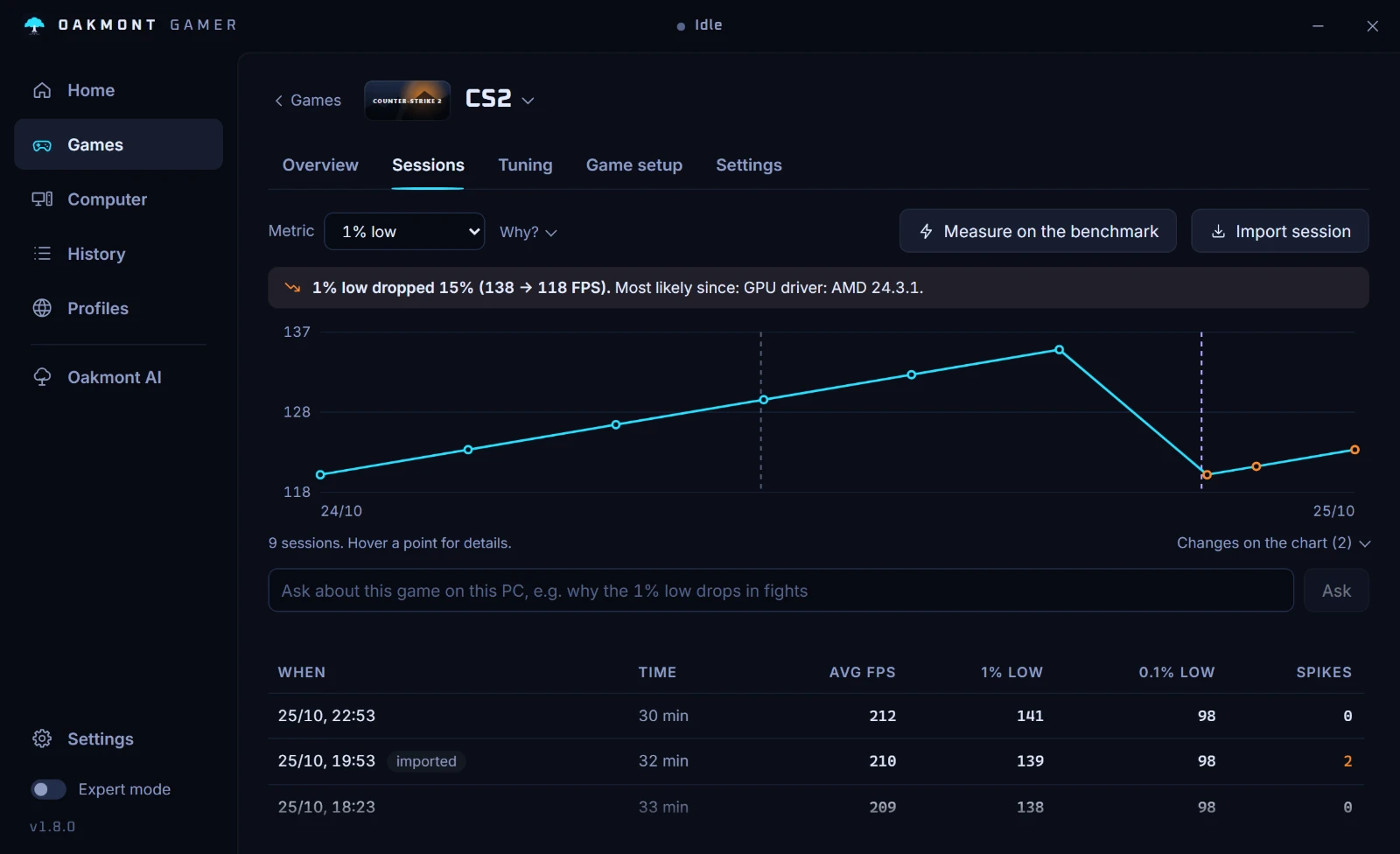
A session with no frame data says why it has none, instead of showing a number it cannot stand behind.
Everything OakmontGamer measures