
The one rule: measure it, keep what wins
The effect of almost every setting below depends on the CPU, the GPU, the driver and the game. A tweak that helped a desktop can do nothing on yours, or make a laptop run hotter and slower. So the question is never whether a tweak is good. It is whether it wins on this PC.
- Change one thing at a time.
- Run the same scene with it and without it, in turns, at least three runs each.
- Compare the 1% lows, not the average. How to measure them.
- Keep the change only if the difference is bigger than the spread between runs of the same setup. Otherwise put it back.
Power plan
The power plan decides how quickly the CPU raises its clock and whether idle cores are parked. High performance and Ultimate Performance keep the CPU at full clock, so it does not have to wake up when the game needs it.
On a desktop that is a safe choice. On a laptop it raises heat and fan noise and can make the CPU throttle harder, so it belongs on the charger only. The one clear mistake is Power saver: it slows the CPU down.
By hand: Control Panel, Power Options. Ultimate Performance is hidden on most editions; powercfg -duplicatescheme e9a42b02-d5df-448d-aa00-03f14749eb61 in a terminal adds it.
Timer resolution
Windows wakes sleeping threads on a timer tick, 15.6 ms apart by default. A program can ask for a finer tick, down to 0.5 ms, so a game loop that sleeps between frames wakes on time.
The myth is that a timer tool left running in the background fixes every game. On Windows 11 a request made by one program no longer applies to the others by default, and many games ask for a fine timer themselves. So the tool may be changing nothing. Whether a finer tick helps a given game is something only a test shows.
In OakmontGamer: the timer is a session setting, and Tuning tests on your PC whether it moves the 1% low.
Game DVR and Game Bar
Two things share this name. The Game Bar overlay is not the expensive part. Background recording is: the feature that keeps the last seconds of gameplay so you can save a clip encodes video the whole time you play, and that costs GPU time.
Turn background recording off unless you use those clips.
By hand: Settings, Gaming, Captures, and switch off "Record what happened".
Hardware-accelerated GPU scheduling (HAGS)
With HAGS on, the graphics card manages its own queue of work instead of Windows doing it on the CPU. On recent cards that usually means slightly lower input lag, and it is worth trying first when a game waits on the CPU. It needs a GPU and a driver that support it, and frame generation in DLSS 3 requires it.
The effect differs between cards and drivers, and it has gone both ways. Test it.
By hand: Settings, System, Display, Graphics, default graphics settings. It takes a restart.
Multiplane overlay (MPO)
MPO lets Windows hand a game window to the display hardware as a layer of its own. It is on by default, and it is one of the ways a windowed game reaches the screen without the desktop compositor's delay.
Turning it off became a popular tweak because on some driver and monitor combinations it causes flicker or stutter. That is the only reason to touch it. If you do not see flicker or stutter in windowed games, disabling MPO fixes nothing.
By hand: a registry value, OverlayTestMode set to 5 under HKLM\SOFTWARE\Microsoft\Windows\Dwm, and a restart.
Fullscreen optimizations
Since Windows 10, a game set to exclusive fullscreen usually runs in a borderless mode that Windows treats like exclusive: the same direct path to the screen, with fast alt-tab and working overlays. The "Disable fullscreen optimizations" checkbox on an exe's Compatibility tab turns that off for one game.
What matters is not the checkbox but how frames reach the screen. OakmontGamer records it for every session: Diagnosis, Technical details, Frame presentation. Independent Flip means frames go straight to the display. Composed Flip or Composed Copy means they pass through the desktop compositor, which adds latency and can stutter.
If the game is composed, try fullscreen in the game's own settings, or on Windows 11 turn on "Optimizations for windowed games" in the graphics settings. It moves windowed and borderless games to the faster path.
Tweaks that rarely matter
- Disabling Nagle's algorithm. It affects TCP. Most shooters use UDP, so there is nothing to speed up.
- Network throttling. Matters only while music or video plays alongside the game.
- Clearing standby memory. Useful when RAM is short. With plenty of RAM, Windows manages it better alone.
- Stopping SysMain and search indexing. A small gain on an SSD. On a hard drive SysMain helps, so leave it running.
What OakmontGamer does with these settings
The app treats a tweak the way this guide does: as a candidate that has to win. Session settings are applied when a game starts and undone when it closes, so your desktop keeps its normal power plan and services.
- During a game it can switch the power plan, set the timer, turn off Xbox background recording, silence notifications and pause a short list of background services. Every change is written to a journal first and undone on exit, logoff, shutdown or after a crash.
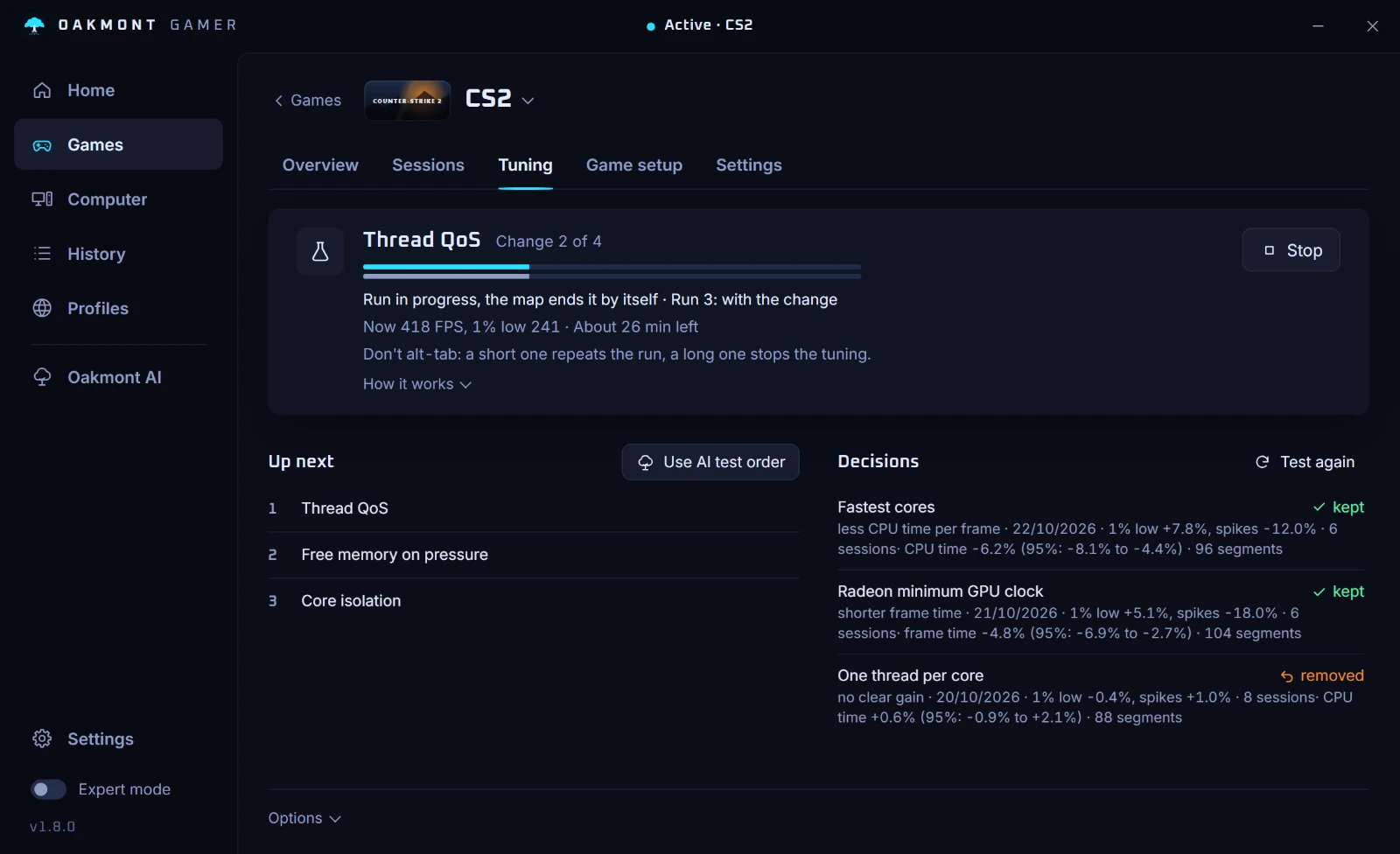
- Tuning takes one change, runs the game with it, without it and with it again, and keeps it only when the 1% low improves by more than the noise between runs.
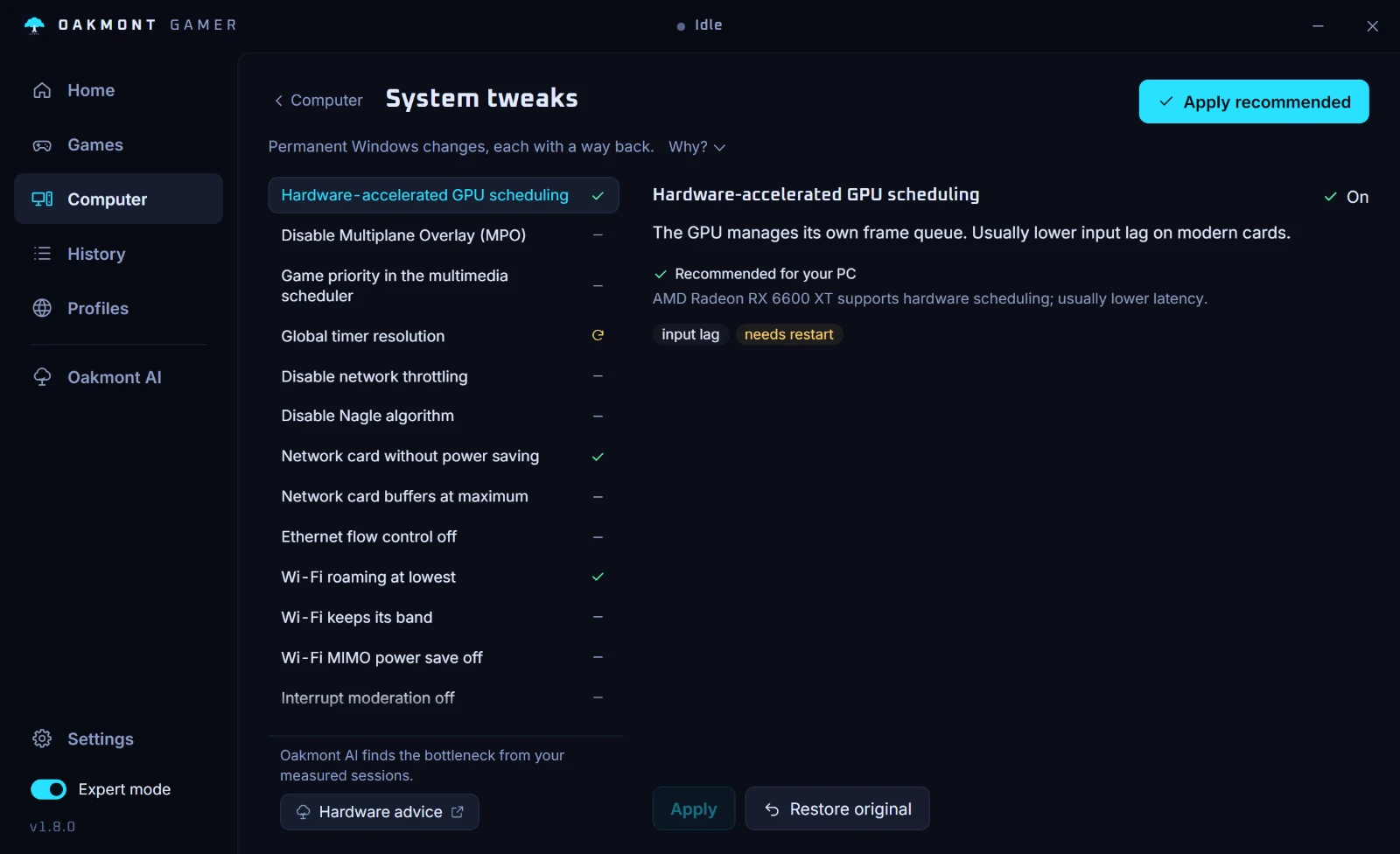
- The permanent settings that need a restart, such as HAGS, MPO and global timer resolution, are a separate list in expert mode. Each has a verdict for your hardware, you apply them yourself, and the original value is saved.
- It reads how your recent sessions reached the screen, so it can say when disabling MPO is probably not needed.


The app asks for administrator rights when it starts, because these are system settings. Before you uninstall it, run Restore everything in Settings: that also puts back the permanent tweaks you applied.
How a change has to win to stay