
How launch options work
You set them in Steam: right-click Counter-Strike 2 in the library, then Properties, General, Launch Options. There are two kinds.
-optionis a switch the engine reads while it starts, for example-fullscreen.+command valueis a console command the game runs at every start, for example+fps_max 400. Anything you can type in the console can go here.
The second kind explains a common surprise: a + option is applied again on every start, so it overrides whatever you chose in the menu.
Steam keeps the line in its own config file and writes that file again when it exits. Change launch options in the Steam window, not by editing the file while Steam runs.
The verdicts
These are the options old guides repeat most and that have a clear answer in CS2.
| Option | Verdict | Why |
|---|---|---|
-high | Hurts | Starts the game at high process priority. That can starve the audio and input drivers and cause stutter. |
-threads | Hurts | Source 2 picks its own thread count. Forcing one only risks instability. |
-tickrate | Does nothing | Only affects a local server you host. Matchmaking uses subtick. |
+fps_max | Not needed | Overrides Max FPS from the game menu on every start. Set the cap in the game. |
-d3d9ex, -nod3d9ex | Does nothing | CS2 does not use DirectX 9. |
The two that hurt
-high
Process priority decides who gets the CPU when two things want it at once. With -high, CS2 goes ahead of the system work that handles your sound and your input. When the CPU is busy, that work has to wait, and you get crackling audio or uneven input: the stutter you were trying to remove.
Higher priority is not wrong in itself, it is wrong as a launch option: it is on at every start and you never see what it costs. If you want to try it, set it for one session and compare the 1% lows. OakmontGamer's Competitive and Max profiles do raise the game's priority, but only while the game runs, together with pushing background programs down, and as a switch in the profile that you can turn off and measure against.
-threads
Source 2 chooses its thread count for your CPU by itself. A forced number is at best the one it would have picked and at worst leaves the game unstable. There is nothing to gain, so remove it.
The ones that do nothing
-tickrate 128 only sets the tick rate of a server you start on your own PC. Matchmaking servers use subtick and ignore it. Keep it only if you practise on a local server and know why you want it.
-d3d9ex and -nod3d9ex switched a DirectX 9 mode in CS:GO. CS2 does not use DirectX 9, so there is nothing left for them to switch.
+fps_max is the odd one. It works, and that is the problem: it sets the cap again on every start, so the Max FPS setting in the menu seems to forget what you chose. Set the cap in the game and delete the option.
What is fine to keep
Options that choose how the window opens or run your own config are harmless. They do what they say, and none of them is a performance trick.
-fullscreen,-windowedand-noborderchoose the display mode,-wand-hthe resolution. The video settings menu does the same.-consoleopens the developer console at start.+exec autoexec.cfgruns your own config file.-vulkanswitches the renderer from DirectX 11 to Vulkan. Whether that is smoother depends on the GPU and its driver, so it is one to measure, not one to copy.
How to check an option yourself
- For a
+option, open the console in the game and type the command name alone. If CS2 answers that the command is unknown, the option does nothing. - For anything that claims more FPS, measure it. OakmontGamer records every session, so play the same scene with the option and without it, a few sessions each way, and compare their 1% lows in the Compare tab. How to measure 1% lows shows the method.
- If the difference is smaller than the difference between two runs of the same setup, the option did nothing. Remove it.
A short launch line is not a weakness. Every option you keep without a measured reason is one more thing to rule out the next time CS2 stutters.
What OakmontGamer does with your launch options
A game's Settings in the app has a Steam launch options section for CS2. It reads the line from Steam's config and marks every option: ok, useless or harmful, with the reason next to it.
-highand-threadsare marked harmful.-tickrate,+fps_max,-d3d9exand-nod3d9exare marked useless.- Anything else is left alone. The app does not judge an option it has no clear answer for.
- One button removes the flagged options. A backup of Steam's config file is made first and can be put back.


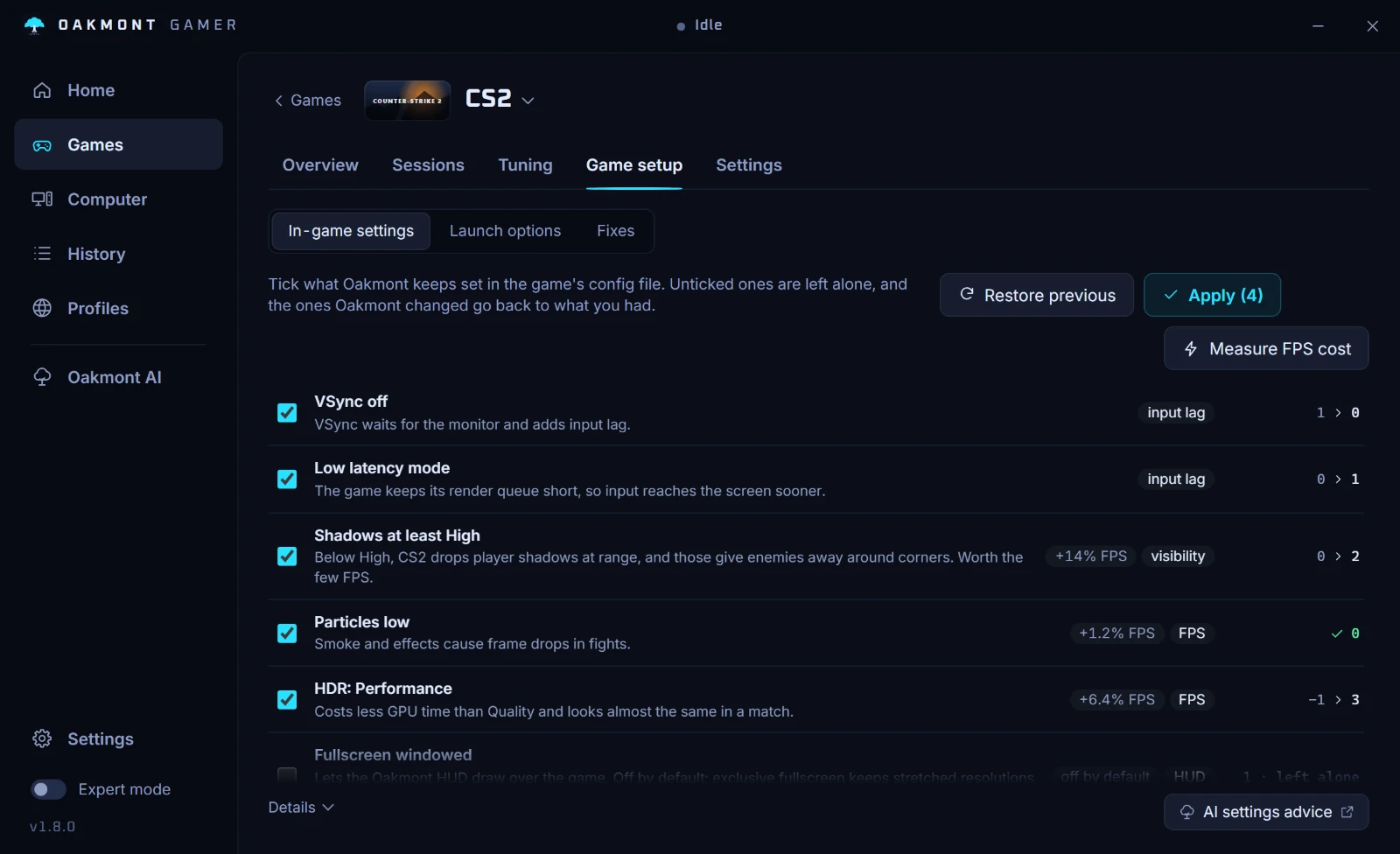
Steam has to be closed while the app writes, because Steam overwrites that file when it exits. The same page holds the in-game presets: VSync off, low latency mode on NVIDIA cards and the few video settings that cost the most, written into the game's own config with a backup.
What the app does per game