
Two different things: the clock and the tick
Most guides mix up two separate parts of Windows timing.
- The clock is what a game reads to know how much time passed, through QueryPerformanceCounter. It can come from the CPU's own counter (TSC) or from a counter on the motherboard: HPET or the older ACPI PM timer.
- The tick is how often Windows wakes up to check timers and sleeping threads. A game that sleeps between frames wakes on a tick, so a coarse tick can make it wake late.
HPET and useplatformclock are about the clock. disabledynamictick, useplatformtick and timer resolution are about the tick.
HPET and useplatformclock
Microsoft explains that since Windows 7 most PCs use the CPU's constant-rate TSC as the clock, and Windows checks at every start whether the TSC is fit for it. Only when it is not does Windows fall back to HPET or the PM timer by itself.
The cost of the fallback is in Microsoft's own numbers. Reading the TSC takes tens to a few hundred CPU cycles and needs no trip into the kernel. Reading HPET or the PM timer needs a system call and costs around 0.8 to 1.0 microseconds per read. Games read the clock all the time.
bcdedit /set useplatformclock yes forces the platform clock anyway, and Microsoft's bcdedit reference adds: this option should only be used for debugging. On a PC with a working TSC it can only make reading the clock slower. If an old guide made you set it, remove it with bcdedit /deletevalue useplatformclock and restart.
The HPET switch in the BIOS is a different setting and differs per board. Windows picks its clock on its own, so leave the BIOS default unless you have a measured reason.
disabledynamictick and useplatformtick
bcdedit /set disabledynamictick yes turns off the dynamic timer tick, so the tick keeps coming at a steady rate even when nothing needs it. Microsoft's Timer Accuracy page notes that a faster tick is likely to raise power use, which matters on a laptop.
bcdedit /set useplatformtick yes forces the clock tick to be backed by a platform source, with no synthetic timers. Microsoft lists both under the same note as useplatformclock: only for debugging. Neither is documented as a gaming setting, and results people report go both ways.
Both are undone the same way: bcdedit /deletevalue disabledynamictick or bcdedit /deletevalue useplatformtick, then a restart.
Timer resolution and the Windows change
A program asks for a finer tick with timeBeginPeriod. Microsoft's reference describes how that changed:
- Before Windows 10 version 2004, a request was global: every program got the finest tick any program asked for.
- Since version 2004, only programs that ask for a finer tick get one, and they get the finest that any program asked for. Programs that never ask stay at the default.
- Since Windows 11, a program whose window is minimized or fully covered is no longer guaranteed a finer tick.
That is why a timer tool running in the background stopped being a fix for everything. A game that never asks gains nothing from it, while a game that asks for a finer tick itself can be given the finer one another program asked for. Microsoft also warns that a higher resolution can lower overall system performance and keep the CPU out of its power-saving states.
Some tools set a registry value, GlobalTimerResolutionRequests, to bring the old global behaviour back on Windows 11. It is not described on Microsoft's documentation pages, so treat it as undocumented and measure it like any tweak. Windows settings for gaming puts the timer next to the other common Windows settings.
The short version
| Tweak | What Microsoft says | Verdict |
|---|---|---|
useplatformclock yes | Only for debugging | Remove it |
disabledynamictick yes | Only for debugging | Test on a desktop, skip on a laptop |
useplatformtick yes | Only for debugging | Test, results differ per PC |
| Finer timer resolution | Per program since version 2004 | Worth a test |
| HPET off in the BIOS | Not a Windows setting | Leave the default |
Step 1: see what old guides already set
Open a terminal as administrator and run bcdedit /enum {current}. Look for useplatformclock, useplatformtick and disabledynamictick in the list. A value that is not listed is at the Windows default. Remove what you do not want with bcdedit /deletevalue and the name, then restart.
Step 2: test one change at a time
Change one thing, restart, and play the same scene three times; then put it back and do the same. Compare the 1% low and the stutter count. How to measure 1% lows shows how big the difference must be to count. If the hitches come on a steady rhythm, the cause is more likely a driver than the timer: DPC latency finds which one.
What OakmontGamer does with timers
The app handles the timer in two places: a session tweak while a game runs, and permanent switches in expert mode, each with a verdict for your PC.
- Precise Windows timer (0.5 ms), a session tweak: the app asks for a 0.5 ms tick while the game runs and lets go when it closes. Under the per-program rule this reaches a game that asks for a timer itself, or every program once Global timer resolution is on. Live tuning switches it off and on in 45-second rounds and keeps it only when the 1% low clearly gains.
- Global timer resolution in System tweaks: sets
GlobalTimerResolutionRequests. Recommended on Windows 11. - Dynamic tick off and Platform tick: the two bcdedit switches. Dynamic tick off is optional on a desktop and marked not needed on a laptop; Platform tick is optional everywhere, with the note that results differ per PC. Restore deletes the value, as Microsoft's command does.
- With Tuning on, Global timer resolution and Dynamic tick off can be tested across sessions, with a restart you click and a restart back if they did not help.


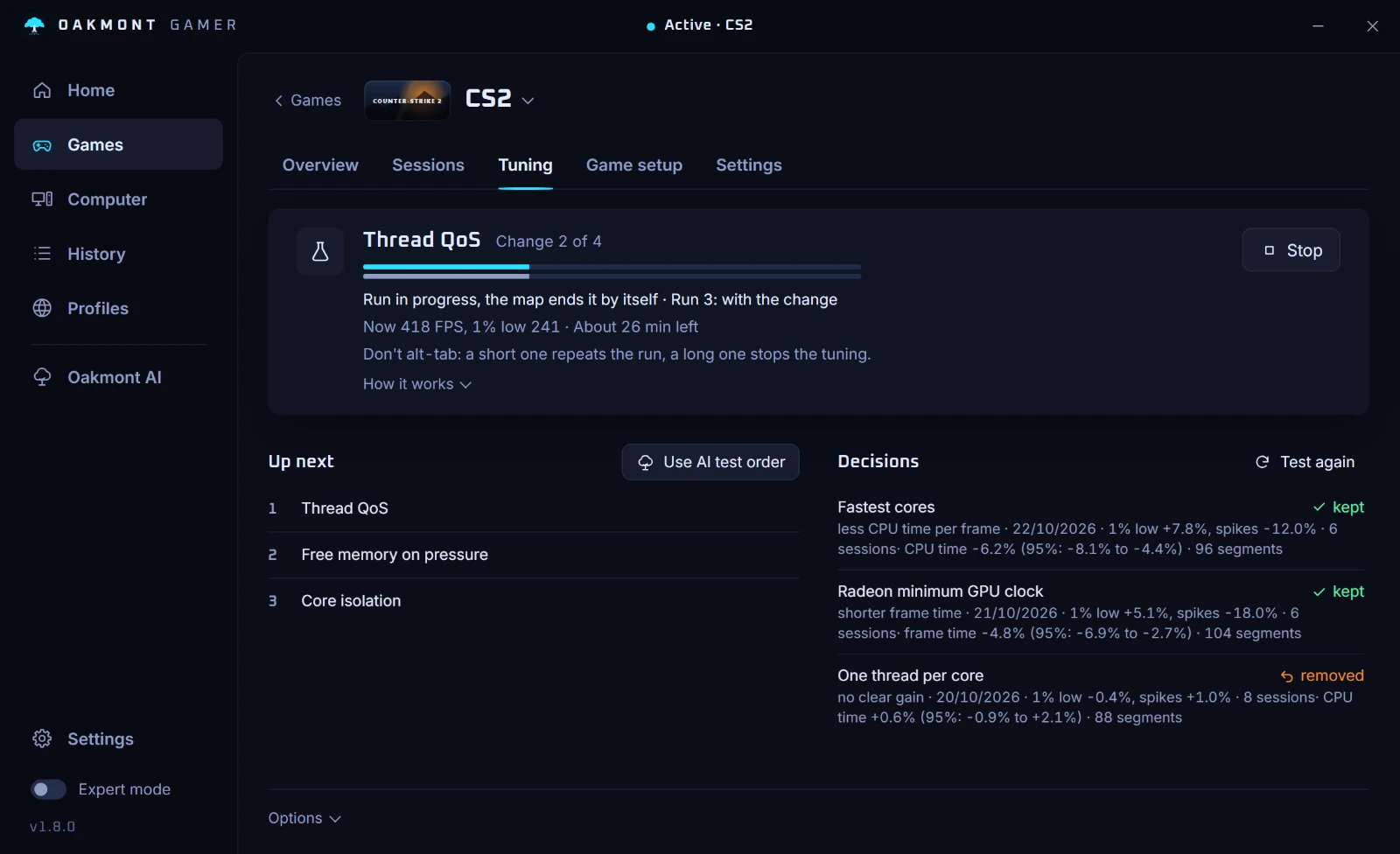
The app never sets useplatformclock. It would slow down every clock read on a modern PC, and Microsoft keeps it for debugging. More on the Computer page.
Questions people ask
- Should I disable HPET for gaming?
- There is usually nothing to disable in Windows: on a modern PC Windows already uses the CPU's TSC as its clock. What you should remove is a forced
useplatformclockfrom an old guide, withbcdedit /deletevalue useplatformclock. - Does bcdedit useplatformclock improve FPS?
- Not on a PC with a working TSC. It forces the motherboard clock, which Microsoft says costs around a microsecond and a system call per read, and Microsoft documents the option as for debugging only.
- Does Windows 11 ignore timer resolution requests?
- Not entirely. Since Windows 10 version 2004 a request only applies to programs that ask for a finer timer themselves, and Windows 11 adds that a minimized or fully covered window is not guaranteed one.
- What is the best timer resolution for gaming?
- There is no single best value for every game. OakmontGamer uses 0.5 ms, tests it on and off while you play, and keeps it only when your 1% low clearly gains.
- Is disabledynamictick good for gaming?
- Microsoft documents it only as a debugging option, and a steady tick costs power. On a desktop it is something to test with sessions, on a laptop it mostly costs battery.
- How do I undo bcdedit tweaks?
- Run
bcdedit /deletevaluewith the name of the option, for examplebcdedit /deletevalue useplatformtick, in a terminal opened as administrator, then restart.
Sources
The technical claims on this page were checked against these official pages.