
First, find out which problem you have
Lag in a match comes from different places, and each has its own fix. Watch when the spikes happen.
- Only when something downloads, uploads or streams on your network: bufferbloat. Most of this guide is about that.
- All the time on Wi-Fi, gone on a cable: the radio link.
- High all the time to one game or region, fine elsewhere: the route or the server. Nothing in your home will fix it.
- The picture hitches but ping stays flat: that is frame stutter, not the network. See finding the cause of stutter.
What bufferbloat is
Your router and modem keep a queue for packets that cannot go out yet. When a download or an upload fills the line, that queue grows, and your game packets wait in it behind everything else. The line is not slow. It is full, and the small urgent packets are stuck behind the big patient ones.
That is why a faster plan often changes nothing: a download fills a fast line too. Upload is usually the worse side because it is the smaller one. A cloud backup or a stream can fill it alone.
Test it under load
- Stop every download on the network and close the game. The test does not run during a game session.
- In OakmontGamer open Computer, then Network, and press Test the connection. It takes about 20 seconds and uses some data.
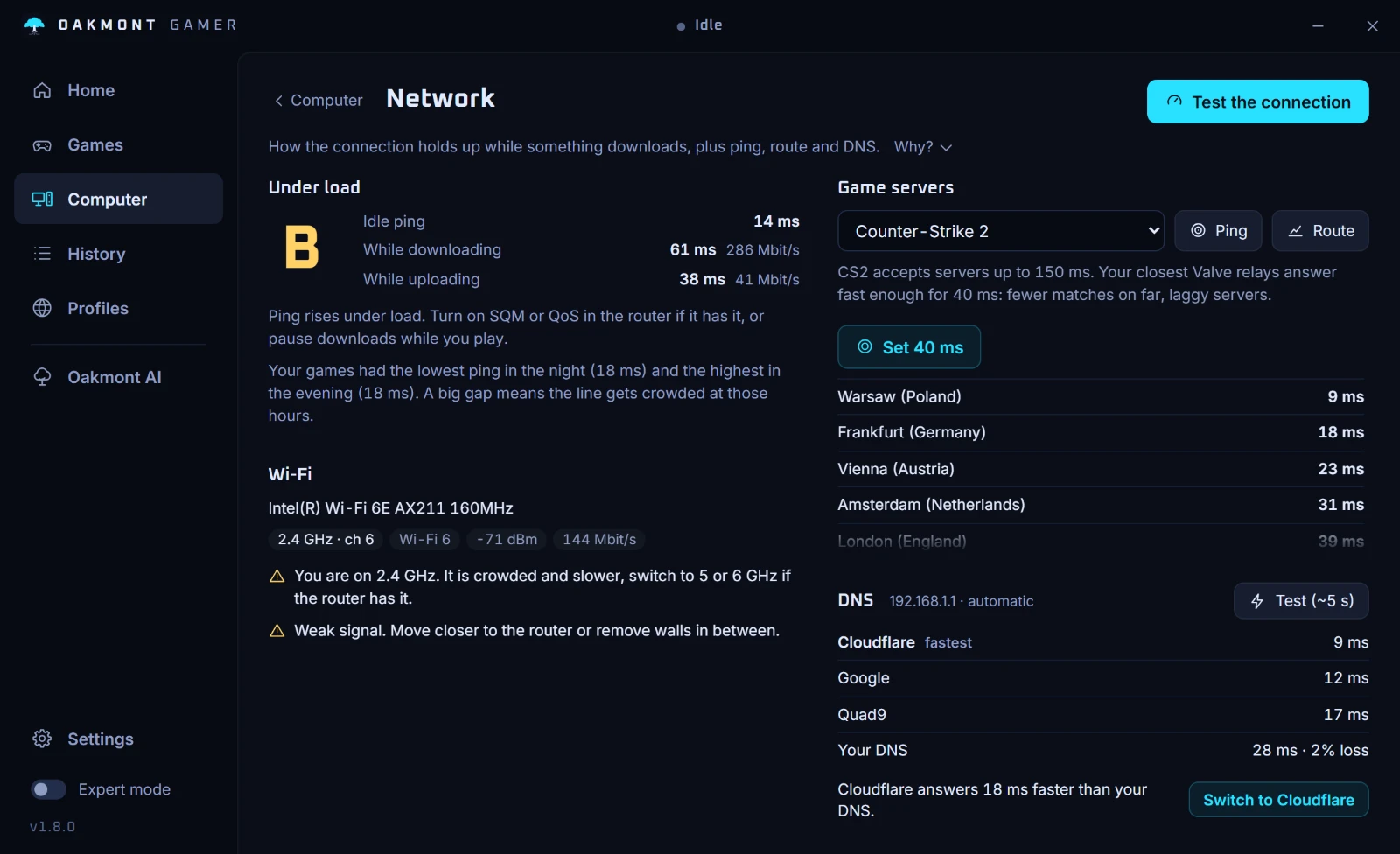
- It pings while the line is idle, then while it downloads and uploads at full speed. You get the three pings, the download and upload speed it reached, and a grade from A+ to F.
- Compare the three. A few milliseconds more under load is a healthy line. Tens of milliseconds is noticeable in a shooter. Hundreds means any download on the network will lag your game.
Fix it at the router
The fix is called SQM, smart queue management. The router stops sending slightly before the line is full and decides the order of packets itself, so small ones are not stuck. Look for SQM, CAKE or fq_codel in the router's settings. Some routers offer something similar as QoS or as a gaming mode.
- Take the download and upload speed from the test, run with nothing else on the network.
- Turn SQM on and set its limits a little under those numbers, about 5 to 10% lower. That margin keeps the queue in the router, where it can be managed.
- Run the test again. The jump should be mostly gone, and the grade shows it.
You give up a slice of top speed and get a steady ping for it. If the router has neither SQM nor a usable QoS, the free fallback is to keep the line from filling: limit download speed in Steam and other launchers, and pause cloud backups while you play.
Wi-Fi: the band matters
Wi-Fi adds jitter and the odd lost packet even with a good signal, because the air is shared. A cable is always better for games. If a cable is not possible:
- Use 5 GHz or 6 GHz. The 2.4 GHz band is crowded and slower.
- Move the router or the PC so fewer walls sit in between. A weak signal means packets get sent again, and those are your ping spikes.
- Check the Wi-Fi line on the app's Network page: band, channel, signal and link speed. A low link speed points at a weak or crowded channel.
DNS does not lower your ping
DNS turns a server name into an address. That happens once, before the connection starts. After that your game talks straight to the server and DNS is not involved, so changing it cannot lower in-game ping.
A faster DNS server does shorten the lookups: logins, launchers, the moment before matchmaking connects. That is a real but small gain, and it is not the one the "best DNS for gaming" lists promise.
When it is the route
If ping is high to one game only, open Game servers on the Network page, ping the regions and press Route for the one you play on. Find the hop where the time jumps and stays high for every hop after it. A single slow hop in the middle with normal hops after it is only a router that is slow to answer pings.
If the jump is at your provider or beyond, your settings will not move it. Picking a closer server region will.
What else the Network page does
The load test from the steps above is one part of the Network page under Computer. The rest of this guide is on the same page.
- Says in a sentence what the grade means and whether to look for SQM or QoS.
- Pings the server regions your game plays through. For Valve games the relay list comes live from Steam.
- Runs a route test and shows the hop where the delay starts.
- Reads the Wi-Fi link: band, channel, signal and link speed, with a warning for 2.4 GHz or a weak signal.
- Times your DNS against Cloudflare, Google and Quad9 and switches with one click, undoable. It says plainly that this speeds up lookups, not in-game ping.
- During a session, when your ping jumps, it names the program that was using the network at that moment.


It cannot configure your router. SQM lives there, and that step stays yours. The load test uses some data, about as much as a short speed test.
What the app checks on the PC itself