
Shaders: why the first matches stutter
A shader is a small program the graphics card runs to draw a surface. On DirectX 12 Fortnite builds them for your card and driver, and keeps the result in a cache. The first time a shader is needed it has to be compiled, and that frame comes out late.
So stutter after a game update or a new graphics driver is expected, and it fades over a match or two as the cache fills. That is not a fault. Clearing the cache by habit brings it back.
The same goes for a driver update: a new graphics driver starts with an empty cache for its own shaders. If you update drivers the evening before a tournament, play a couple of warm-up matches first.
Epic describes one real fault, though: a client that keeps compiling the same shaders over and over, so the stutter never fades. That case is what clearing the cache is for.
Step 1: clear the DirectX shader cache, once
Only when the stutter comes back every match. Close Fortnite, then delete the contents of the folder for your card. Epic names these:
- NVIDIA:
%LOCALAPPDATA%\NVIDIA\DXCacheand%LOCALAPPDATA%\NVIDIA\PerDriverVersion\DXCache - AMD:
%LOCALAPPDATA%\AMD\DxCache
Expect the first match afterwards to stutter while shaders compile again. If the second and third are smooth, that was it.
On NVIDIA, also check Shader Cache Size in the NVIDIA Control Panel or the NVIDIA App. NVIDIA warns that a limit set too small throws shaders away and causes stutter. Leave it on the driver default.
Step 2: pick the rendering mode
Fortnite has two modes left under Settings, Video, Rendering Mode: DirectX 12 and Performance. DirectX 11 was removed in version 40.10.
- DirectX 12 gives the full picture and is where shader compiling happens.
- Performance also runs on DirectX 12, but turns off most rendering features to use less memory and less CPU and GPU time. On an older or low-memory PC it is the smoother choice.
For Performance mode Epic suggests unticking Use High Resolution Textures in the launcher's options for Fortnite. It saves over 14 GB of disk space and keeps less in memory.
Step 3: the settings Epic recommends
- Window Mode: Fullscreen.
- Vsync off. It adds input lag.
- Frame Rate Limit: unlimited, or your refresh rate if you see tearing.
- NVIDIA Reflex Low Latency: On, or On + Boost.
- View Distance, Textures and Meshes are the next levers when the frame rate is short.
Epic's low FPS article also lists NVIDIA Control Panel settings: Low Latency Mode Ultra, Power management mode Prefer maximum performance and Shader Cache on.
Step 4: memory and the disk
Fortnite streams a large map. When video memory fills up, textures go to system RAM and every fetch from there is a hitch. When system RAM fills up, Windows reaches for the page file. Epic notes that an SSD reduces hitches overall.
A browser left open on a second screen holds video memory too. Close it, or let OakmontGamer's VRAM guard deal with it, described below.
To check, play a match with the in-game frame counter on, Show FPS under the video settings, and note where it drops. Drops mostly when you land or move into a new area point at memory and the disk; drops in build fights mean the GPU or CPU is at its limit.
If it is not Fortnite
A driver that holds the CPU, a program busy in the background or a GPU running hot cause the same hitches in Fortnite as anywhere else. The checklist for finding a stutter's cause works for every game, and so does the one for FPS drops every few seconds.
What OakmontGamer does for Fortnite
Fortnite has its own in-game preset in the app and its own check after a session.
- When most stutters of a session came right after loading, Diagnosis names it: Shaders compiling. The advice is to play a match or two first, and only if it comes back every match, to clear the DirectX shader cache from Computer, System tweaks, in expert mode.
- The In-game settings section writes VSync off, a frame cap just under your refresh rate (138 on a 144 Hz monitor) and low shadows, effects and post-processing into
GameUserSettings.ini, with a backup. - When video memory is over 95% full, the VRAM guard freezes browsers that hold video memory until it has been under 85% for a minute. The browser on screen and Discord are never touched.
- Easy Anti-Cheat and the rest of the game's own processes are left alone.


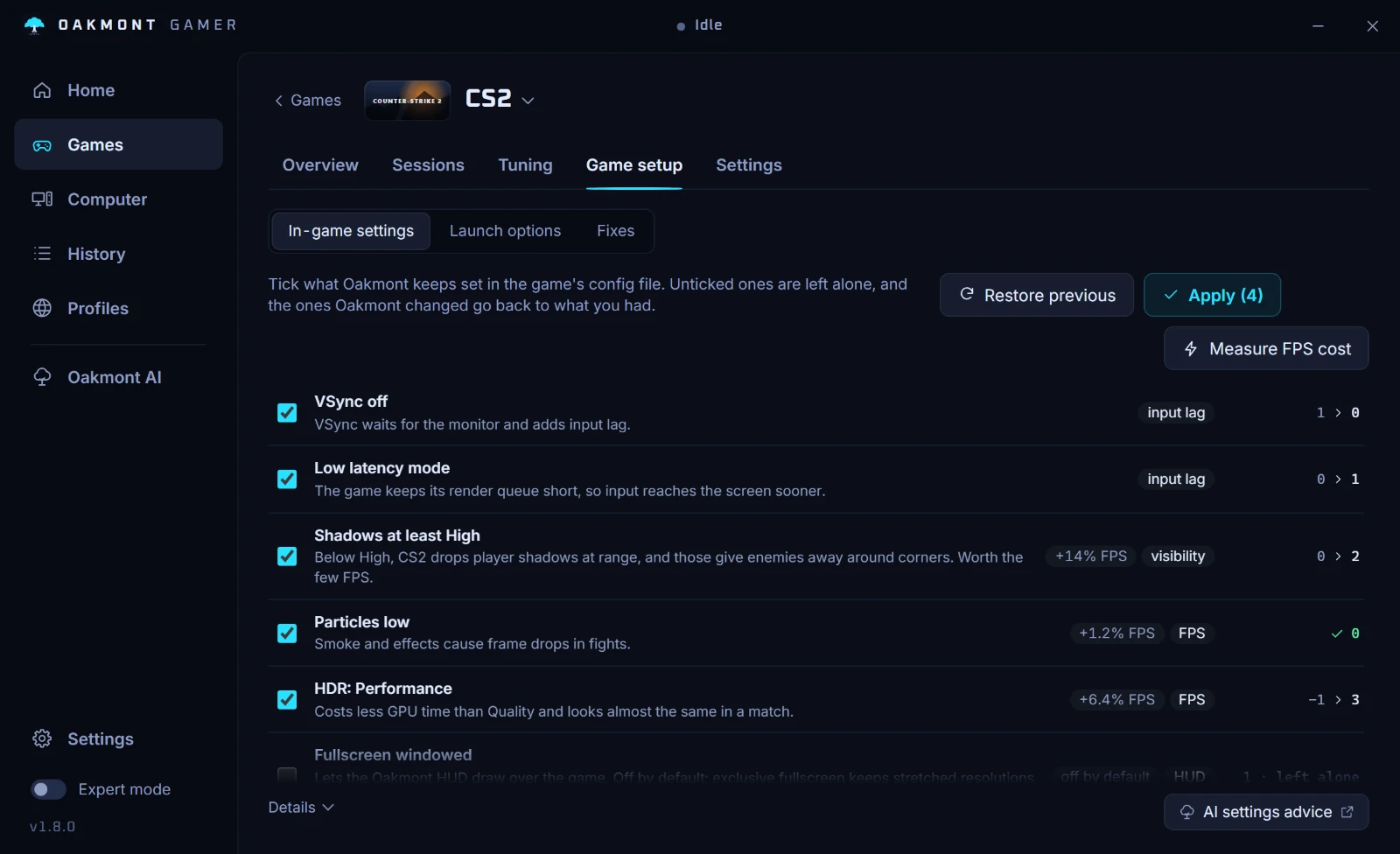
Every change the app makes for a session is undone when the game closes. The in-game preset is a file change you can put back from its backup.
What the app does per game