
What each rate means in milliseconds
The mouse sends its movement and clicks in reports. A movement that happens just after a report waits for the next one, so the time between reports is the most the mouse can add.
| Polling rate | Time between reports | Verdict |
|---|---|---|
| 125 Hz | 8 ms | Too slow for games |
| 500 Hz | 2 ms | Fine, not the best |
| 1000 Hz | 1 ms | The safe default |
| 2000 Hz | 0.5 ms | Test it |
| 4000 Hz | 0.25 ms | Test it |
| 8000 Hz | 0.125 ms | Only on a strong CPU |
NVIDIA's figure for the low end: 125 Hz adds up to 3 ms of system latency on average compared with 1000 Hz. Above 1000 Hz the gains are fractions of a millisecond, and a 240 Hz monitor still refreshes only every 4.2 ms.
What a higher rate costs
Every report is work for the CPU. At 8000 Hz that is 8,000 reports a second while you move the mouse, and the game reads them too. Razer, which sells 8000 Hz mice, says it plainly on its own page: some PCs are not powerful enough, and in CPU-bound cases the computer might lack the resources to process 8,000 reports a second.
Razer's fixes are to close programs keeping the CPU busy, or to set 4000 or 2000 Hz. It also says some game engines, older ones in particular, cannot handle high polling rates well, and points to game options that help, such as Raw Input Buffer in Valorant and High Precision Mouse Input in Overwatch.
When polling rate causes stutter
- Frame rate drops or hitches only while you move the mouse fast, and the game is smooth when you stand still.
- The game leans on the CPU, so the extra reports land on cores that were already busy.
- The USB driver,
usbxhci.sys, shows long calls in a DPC trace. DPC latency explains how to read that.
Any of these is a reason to drop to 1000 Hz and play the same scene again. If the hitches go, the rate was too high for that PC or that game. Riot names fast mice as a cause of camera stutter in League: League of Legends FPS drops.
Hubs, front ports and wireless dongles
Razer asks for a wired mouse to be plugged straight into a native USB port on the PC, and for a wireless dongle to be kept away from active USB 3 hubs, which can make 2.4 GHz noise. A front panel port is wired through the case to the motherboard, so the rear ports are the more direct choice.
USB power saving is the other thing to check, because Windows can put a USB device to sleep. Device Manager, the device, Power Management, and untick the power saving option.
Step 1: set the rate in the mouse software
Windows has no setting for it. The rate is set in the maker's software or with a button on the mouse, and wireless mice often need the dongle that came with them for the highest rates. Start at 1000 Hz.
Step 2: check the rate you really get
The number in the software is what the mouse is told, not always what arrives. In OakmontGamer open Computer, Mouse and keyboard, press Check input and move the mouse fast in big circles for the whole two seconds. A slow movement does not send on every poll, so the app then shows the rate as a minimum, such as 500 Hz or more.
Step 3: test a higher rate in your game
Play the same scene at 1000 Hz and at the higher rate, three runs each, and compare the 1% low and the stutter count. Keep the higher rate only if nothing got worse. How to measure 1% lows shows how to read the spread between runs, and input lag on PC shows where the mouse sits next to the bigger delays in the chain.
What OakmontGamer checks on your mouse
The Mouse and keyboard page on the Computer page times the reports of every mouse and keyboard for two seconds. Nothing is changed by the check.
- The real polling rate, read from when the reports arrived, from 125 to 8000 Hz. Next to it, the highest rate the device says it supports.
- Under 500 Hz it suggests 1000 Hz in the mouse software.
- A mouse behind a hub or a front panel gets a hint to move it to a rear USB port.
- USB power saving on the device, and USB selective suspend in the power plan. For the last one the game profile has a switch, Disable USB selective suspend, that turns it off while you play.
- When a USB driver held the CPU right before stutters, the session's Diagnosis says so and suggests unplugging or lowering the polling rate of USB devices you do not need.


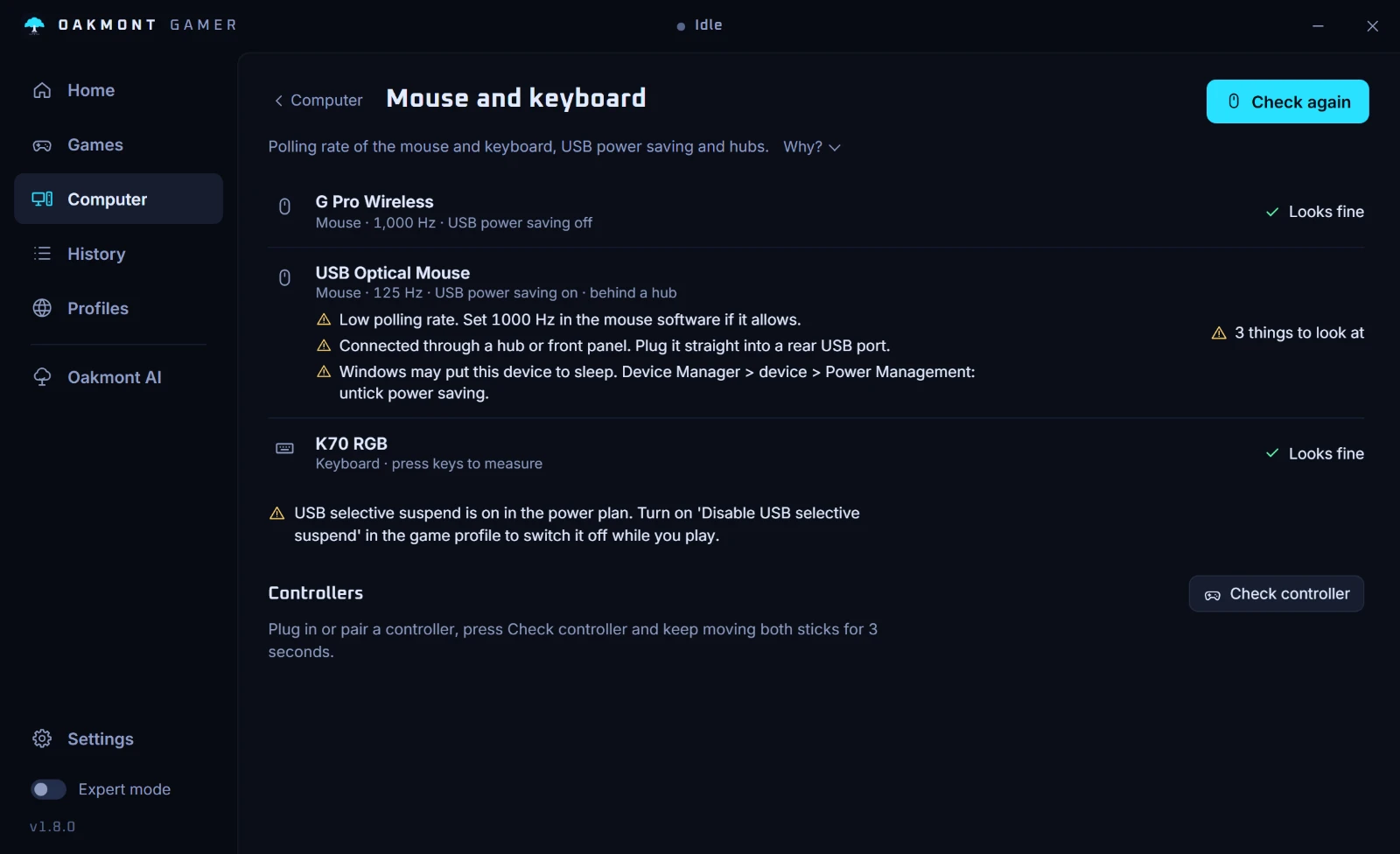
The app does not set the polling rate: that lives in the mouse's own firmware and software. It tells you what really arrives and keeps the sessions, so you can compare 1000 Hz with 8000 Hz on your own PC.
What the Computer page checksQuestions people ask
- Is 8000 Hz better than 1000 Hz for gaming?
- It cuts the time between reports from 1 ms to 0.125 ms, but it gives the CPU eight times as many reports. On a strong CPU in a game that handles it, it can help a little; on a CPU-bound PC Razer itself recommends dropping to 4000 or 2000 Hz.
- Can a high polling rate cause stutter?
- Yes. Each report costs CPU time, and some older game engines handle high rates badly. If a game hitches while you move the mouse fast, try 1000 Hz and compare.
- Does mouse polling rate affect FPS?
- It can when the CPU is the limit, because thousands of reports a second take time from the game. On a PC with plenty of CPU headroom the effect is usually too small to see.
- Why does my mouse show a lower polling rate than I set?
- Usually the mouse moved too slowly to send on every poll, so move it fast in big circles while measuring. A hub, a front panel port or a wireless mouse on the wrong dongle can also hold it back.
- What polling rate should I use?
- 1000 Hz. It is far better than 125 Hz and costs almost nothing. Try 2000 or 4000 Hz only if your CPU has headroom, and keep it only if your sessions show no extra stutter.
Sources
The technical claims on this page were checked against these official pages.