
Where the delay comes from
NVIDIA splits the delay from click to screen, which it calls system latency or click to display, into three parts. Each has its own fixes, so it pays to know which part you are working on.
| Part | What it covers | What adds to it |
|---|---|---|
| Peripheral | The mouse reading your click and sending it to the PC | A low polling rate, a slow wireless link |
| PC | The game working on the input and the GPU drawing the frame | Frames queued on the GPU, VSync, the compositor, a slow CPU or GPU |
| Display | The monitor showing the new frame | A low refresh rate, slow pixel response |
NVIDIA says the PC part is often the largest. It is also where the settings below act, so start there.
Step 1: stop frames queueing on the GPU
When the GPU is the limit, the CPU prepares frames faster than the GPU can draw them, and they back up in a render queue. Every queued frame is input you already gave that has not reached the screen yet. NVIDIA describes exactly this backup as the main source of render latency in GPU-heavy scenes.
- Reflex, in games that have it. NVIDIA's game-side fix: the game paces itself so work does not queue up for the GPU. NVIDIA says its benefit is generally much better than the driver's Ultra Low Latency mode, and Reflex overrides that mode when both are on.
- Low Latency Mode in the NVIDIA driver, or Radeon Anti-Lag, for games without Reflex. NVIDIA says Ultra Low Latency also cuts the render queue, but from the driver instead of the game.
- A frame cap a little under what the GPU can hold. The queue only fills when the CPU runs ahead of the GPU. A cap keeps the GPU just short of full load, so the CPU can no longer get ahead.
Reflex against Anti-Lag compares the two vendor options in detail. If you use frame generation, read frame generation and input lag first: NVIDIA requires Reflex in every game with DLSS Frame Generation.
Step 2: VSync off, or a cap under the refresh rate
VSync makes the GPU wait for the monitor before it shows a frame. NVIDIA's words: it causes back pressure from the display that runs through the whole system. If you can live with tearing, turn it off.
With G-Sync or FreeSync, keep the frame rate under the refresh rate so the screen never has to wait. NVIDIA's own setup for this is VSync on together with Reflex or Ultra Low Latency, which caps the frame rate below the refresh rate automatically; it adds a little latency compared with running uncapped with Reflex. G-Sync and FreeSync settings has the numbers for each refresh rate.
Step 3: give frames a direct path to the screen
In a window, frames usually pass through the Windows desktop compositor, which adds latency. NVIDIA recommends exclusive fullscreen because it bypasses the compositor, and says borderless windowed has improved but fullscreen is still the better choice.
What counts is how the frames really reached the screen, not what the menu says. OakmontGamer records it for every session: Independent Flip means frames went straight to the display, Composed Flip or Composed Copy means they went through the compositor. Windows settings for gaming covers fullscreen optimizations and the Windows 11 option for windowed games.
Step 4: the monitor
A finished frame waits for the next refresh. At 60 Hz there is a refresh every 16.7 ms, at 144 Hz every 6.9 ms, at 240 Hz every 4.2 ms. NVIDIA calls a higher refresh rate the best way to cut display latency.
- Check in the Windows display settings that the monitor really runs at its rated refresh rate, and that the cable can carry it.
- Use a moderate overdrive setting. NVIDIA warns that too much overdrive brings visible artifacts that outweigh the faster pixel response.
Step 5: the mouse
Set the mouse to its highest stable polling rate, 1000 Hz for most mice. NVIDIA puts it plainly: a 125 Hz mouse adds up to 3 ms of system latency on average compared with 1000 Hz. Going higher than 1000 Hz saves less than a millisecond and can cost CPU time; mouse polling rate explains where the line is.
How to measure input lag
- With hardware. NVIDIA's Reflex Latency Analyzer, built into some G-Sync monitors, detects the click from a supported mouse and the change on screen. It measures the whole chain, mouse included.
- In games with Reflex. Many show Game and Render latency in their own stats. NVIDIA's advice: high Game latency points to the CPU, high Render latency to the GPU.
- With PresentMon or OakmontGamer. PresentMon estimates, for each frame, the time from the earliest mouse click that went into it until it was displayed. That is the PC side only: the mouse's own delay is not in it.
Whatever you use, compare medians over many clicks and repeat the same scene a few times. A single reading is noise. How to measure 1% lows shows how to tell a real change from the spread between runs, and the same rule holds for latency.
What OakmontGamer measures and changes for input lag
Every session records, next to the frames, two latency numbers on its Overview tab. Latency is the display latency: from the start of a frame until it reached the screen. Click to screen is PresentMon's click-to-photon estimate, shown as median and p95 once a session has at least 20 clicks. Both are on the Windows side; the mouse hardware is not in them.
- Diagnosis flags a game whose frames went through the compositor and long frames from VSync missing a refresh.
- Session tweaks the game profile can switch on, undone when the game closes: Low Latency Mode On on a GeForce, Radeon Anti-Lag on AMD, and VSync forced off in the driver.
- An optional dynamic frame cap: while the GPU is the limit, a driver cap sits 3% under the median FPS. For competitive games it is used only once the game's own sessions show click to screen at least 5% lower with it.
- The Computer page checks the refresh rate of every screen and the real polling rate of your mouse.


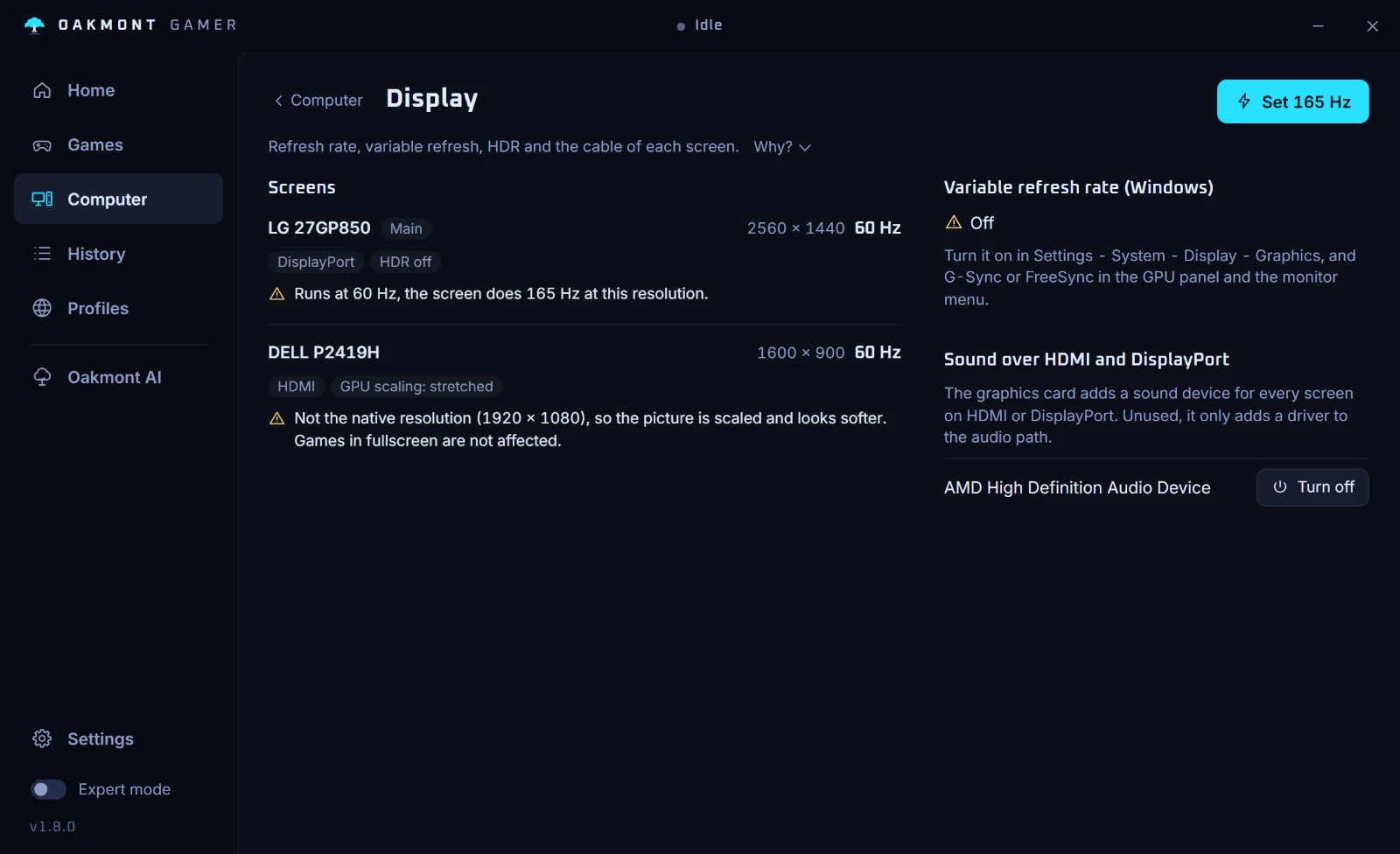
The app does not read mouse hardware latency and does not inject anything into the game. It tells you whether the PC side of the delay went down, session against session. More on what the app measures.
Everything OakmontGamer measuresQuestions people ask
- What causes input lag on a PC?
- Mostly the PC itself: frames queued on a GPU that runs at full load, VSync waiting for the monitor, and the desktop compositor in windowed mode. The monitor's refresh rate and a low mouse polling rate add the rest.
- Does VSync add input lag?
- Yes. NVIDIA says VSync causes back pressure from the display through the whole system. Turn it off, or with G-Sync or FreeSync keep the frame rate under the refresh rate.
- Is NVIDIA Reflex better than Low Latency Mode?
- NVIDIA says so: Reflex works in the game and its benefit is generally much better than the driver's Ultra Low Latency mode. Use Reflex where the game has it and the driver mode elsewhere.
- Does a 240 Hz monitor reduce input lag?
- Yes, a finished frame waits less for the next refresh: 4.2 ms between refreshes at 240 Hz against 16.7 ms at 60 Hz. Check in Windows that the monitor really runs at 240 Hz.
- How do I measure input lag without special hardware?
- Use the latency stats of a game with Reflex, or PresentMon's click-to-photon estimate, which OakmontGamer shows per session as Click to screen. Neither includes the mouse's own delay, so compare sessions with the same mouse.
- Does frame generation increase input lag?
- A generated frame sits between two real ones, so the next real frame has to exist before it can be shown. That is why NVIDIA requires Reflex in every game with DLSS Frame Generation.
Sources
The technical claims on this page were checked against these official pages.