
Why a light game still drops frames
League is not a heavy game, so it runs at high frame rates on most PCs. At 200 FPS a frame takes 5 ms, and a single frame of 40 ms is a hitch you feel in a teamfight. The average hardly moves. That is why Riot treats two problems apart: FPS that stays low all the time, and short freezes where the game stops for a moment and carries on.
Low FPS all the time is usually settings or hardware. Short freezes are usually something else taking the CPU for a moment. To tell them apart you need frame times, not the FPS counter: 1% low FPS explains the difference. For the other big MOBA, see Dota 2 stutter.
One measurement of ours shows both problems at once. In the Practice Tool on a Ryzen 7 3800X with an RX 6600 XT, with three 7-Zip jobs compressing files in the background, League averaged 24.5 FPS over five 60-second runs. With OakmontGamer freezing the jobs while the game ran, it averaged 46 over three. Hitches of 100 to 250 ms stayed in every run either way, so the 1% low did not improve: the busy program explained the low frame rate, not the freezes.
Step 1: Riot's checks
Riot's support article on micro-freezing and stuttering in League lists these for Windows, and a separate one covers laptops with two GPUs. Each step rules out a whole group of causes.
- Check the PC against the minimum requirements.
- On a laptop, set the Windows power mode to Best performance while you play.
- Update the graphics driver, and install every Windows update. Restart when asked.
- On a laptop with two GPUs, open Windows Settings, System, Display, Graphics, pick League, Options, and choose High performance. Windows sometimes picks the power-saving chip.
- Do a clean boot. If the stutter is gone there, one of your startup programs is the cause.
- Update the network adapter driver.
- If nothing helped, reset the game configuration so League starts from fresh settings files. SFC and DISM, which repair Windows files, come last.
Step 2: the video settings
Riot's low frame rate article gives a starting point for a PC that struggles. Test in a custom game first, then press Escape and open Video:
| Setting | Riot's value for a weak PC |
|---|---|
| Resolution | Same as the desktop |
| Character Quality | Very Low |
| Environment Quality | Very Low |
| Shadows | No Shadow |
| Effects Quality | Very Low |
| Frame Rate Cap | 60 FPS |
| Wait for Vertical Sync | Off |
| Anti-Aliasing | Off |
On a stronger PC you do not need all of that, but the Frame Rate Cap matters on any PC. A cap a little under what the PC holds in a big fight keeps frame times even, and the swings between very high and merely high frame rates feel like hitches. With G-Sync or FreeSync, keep it a few frames under the refresh rate: G-Sync and FreeSync settings has the details.
Riot also lists a few Interface options that cost frames: HUD animations, the target frame on attack, the line missile display and the attack range display.
Step 3: stutter when you move the camera or click
Riot has a separate list for stutter that mostly happens when you move the camera, move the mouse or click. Two things to try:
- Let League handle high DPI scaling: right-click the League shortcut, Properties, Compatibility, Change high DPI settings, tick Override high DPI scaling behaviour, and set Scaling performed by to Application.
- If the mouse runs at 1000 Hz or higher, lower it below 1000 Hz in the mouse software and test again.
A high polling rate means more work for the USB driver and the CPU. Mouse polling rate explains when 4000 or 8000 Hz is worth it and when it is not.
Fullscreen optimizations
Riot has an article on turning off fullscreen optimizations for League, because they sometimes make things worse. You can do it for League of Legends.exe in the Game folder of the install, on the Compatibility tab of its Properties. Riot warns that it has to be done again after every patch.
It is not a sure gain. Test a few games with it and without it. Windows gaming settings covers what fullscreen optimizations do.
Vanguard: leave it running
Vanguard is Riot's anti-cheat: a client and a kernel driver. Riot is clear that it must be running whenever the League client is open, and that it starts with Windows, so turning it off means a restart before you can play again. On Windows 11 it also needs TPM 2.0.
Turning Vanguard off is not a performance fix. It ends with the game refusing to start. If you get a Vanguard error, Riot's error code list and a clean reinstall are the way out.
When it is ping, not frames
Press Ctrl+F in a match to show your ping. Riot names the hotkey Toggle FPS Display, under Options, Hotkeys, Display. If ping jumps while the frame rate holds, the PC is not the problem. Riot's own advice is a cable instead of Wi-Fi and closing programs that use the connection. A connection that spikes when someone else downloads is bufferbloat, covered in ping spikes and bufferbloat.
What OakmontGamer does for League
The app finds League in the Riot Games install and records every match from outside, with nothing injected. League has no in-game preset and no launch options in the app: the Riot Client has no field for them. What it does is the same for every game, and here it fits the problem well.
- Counts the stutters after loading and names the cause it can see in the same seconds: a driver call of a millisecond or more, a busy background program, memory pressure, or network lag with the frames still steady.
- Names
usbxhci.syswhen the USB driver held the CPU before the stutters, which is how a too-high polling rate shows up. - Puts a busy background program in Eco or freezes it while the game runs, with one press on its Diagnosis row.
- Treats League as a competitive game: nothing that adds input lag, so no frame generation, no Radeon Chill and no driver frame cap.
- Never freezes, closes or lowers
vgc.exe, never stops the Vanguard services, and turns off its per-thread scheduling while a kernel anti-cheat runs.


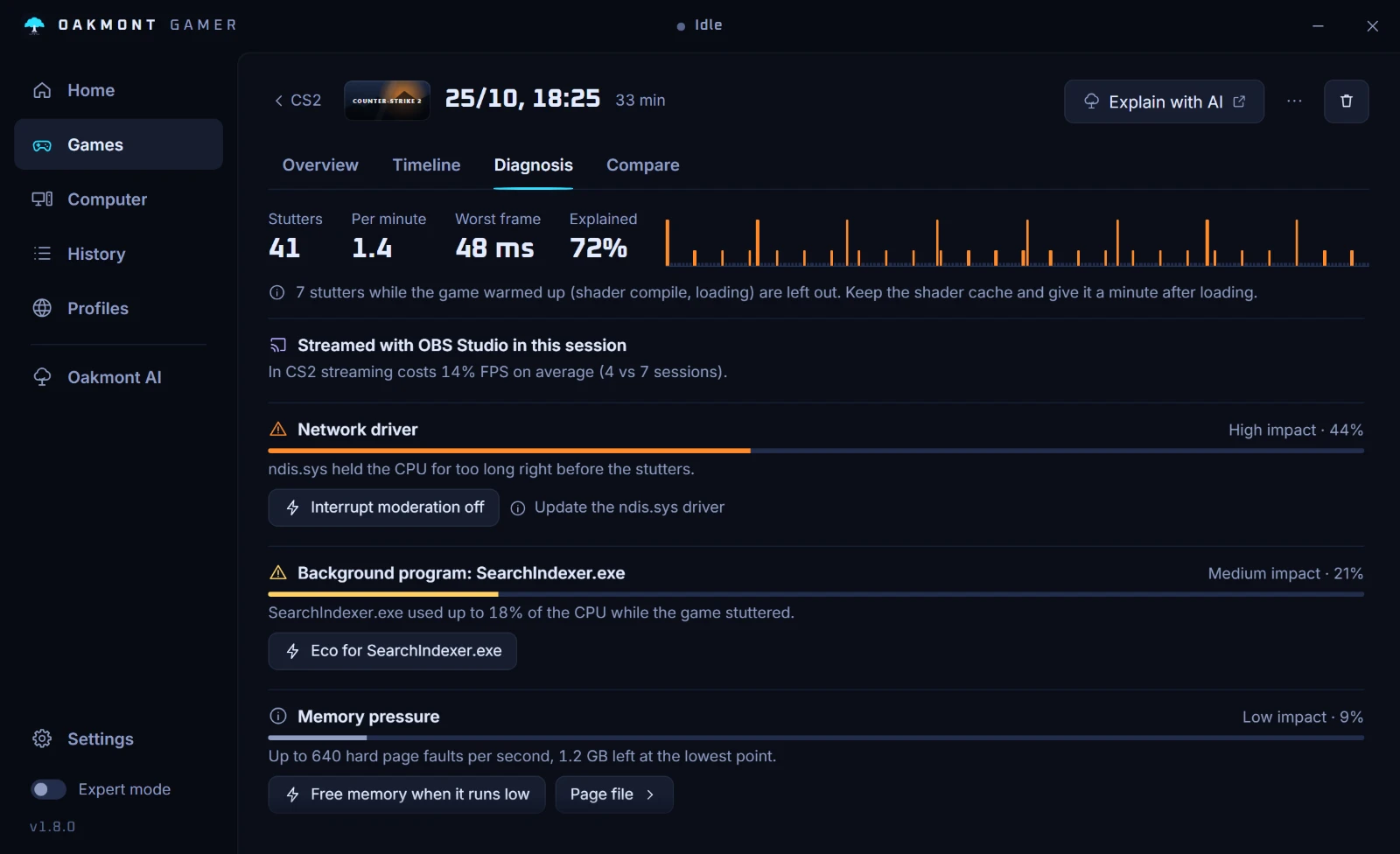
League has no benchmark, so Tuning tests changes across your normal games, in stretches matched by load. When nothing lines up with a stutter, the app says so instead of inventing a cause. See how the diagnosis works.
How the stutter diagnosis worksQuestions people ask
- Why does League of Legends drop FPS in teamfights?
- A fight puts the most champions, effects and HUD elements on screen at once, so it is the moment a PC near its limit falls behind. Lower Effects Quality and Shadows first, and set a Frame Rate Cap you can hold in fights.
- What frame rate cap should I use in League?
- One your PC holds in a big fight, a little under your monitor's refresh rate if you use G-Sync or FreeSync. Riot's own starting point for a weak PC is 60 FPS.
- Does Vanguard lower FPS in League?
- Riot does not say it does, and turning it off is not an option: Vanguard has to run whenever the League client is open. If you suspect it, Riot's repair steps reinstall it rather than turn it off.
- Why does League stutter when I move the camera?
- Riot points at two causes: Windows scaling the game on a high DPI display, and a mouse polled at 1000 Hz or more. Let League handle the DPI scaling and lower the polling rate below 1000 Hz.
- How do I see my FPS and ping in League?
- Press Ctrl+F in a match. The hotkey is called Toggle FPS Display and can be changed under Options, Hotkeys, Display.
Sources
The technical claims on this page were checked against these official pages.