
What Game Mode does
Microsoft's developer page on Game Mode, kept in the Microsoft Learn archive, says it gives a game exclusive or priority access to hardware resources, and that the gain is directly related to the number and impact of other activities running on the device. The game has to be in the foreground and have focus. It works by default for most Windows games, with nothing for the player or the developer to do. We read it on November 15, 2026. It was written for Windows 10 and the developer APIs it describes are marked deprecated, but Game Mode itself is still a switch in Windows 10 and 11.
In other words, Game Mode is the same idea as a booster, done by Windows itself: other activity gets less of the machine while the game is in front. It does not change your power plan, stop services by name, free memory or measure anything, and it does not tell you what it did.
Where to find it: Settings, Gaming, Game Mode. Leave it on unless a test shows a game runs worse with it.
What a booster adds on top
- A faster power plan for the session, so the CPU does not have to clock up when the game needs it.
- Background programs paused or closed, not only given less time. Updaters and launchers stop competing at all.
- Priority and CPU cores set for the game, such as the fastest cores on a hybrid Intel chip.
- A finer system timer, notifications silenced, background recording off.
- A way to see the result, if the booster measures. Game Mode has no readout.
Side by side
| Game Mode | A third-party booster | |
|---|---|---|
| Comes with Windows | Yes, on by default | No, installed separately |
| Acts on | The game in front, with focus | The game it detects |
| Changes | Priority access to CPU and GPU | Power plan, priority, cores, apps, services, timer |
| Undo | Nothing to undo | Has to put every change back |
| Risk | Very little | Depends on how far it goes |
| Shows the effect | No | Only if it measures |
| Cost | Free | Free to paid |
Should Game Mode stay on?
In almost every case, yes. A booster is not a replacement for it: the two work at different levels and do not get in each other's way. Old advice to turn Game Mode off still goes round. If you suspect it, test it like anything else, on and off, three runs each, and compare the 1% lows. How to read them.
When Game Mode is enough
- Your PC is clean: few programs in the tray, nothing updating while you play.
- The game is GPU-bound. With the graphics card at 100%, nothing on the CPU side will show.
- You do not want a tool that changes system settings. Game Mode asks for nothing.
A booster earns its place when the game waits on the CPU, the PC runs a lot in the background, or you want to know what is causing a stutter. Do game boosters work? goes through each change, and the Windows settings guide through the ones you can set by hand.
What OakmontGamer does on top of Game Mode
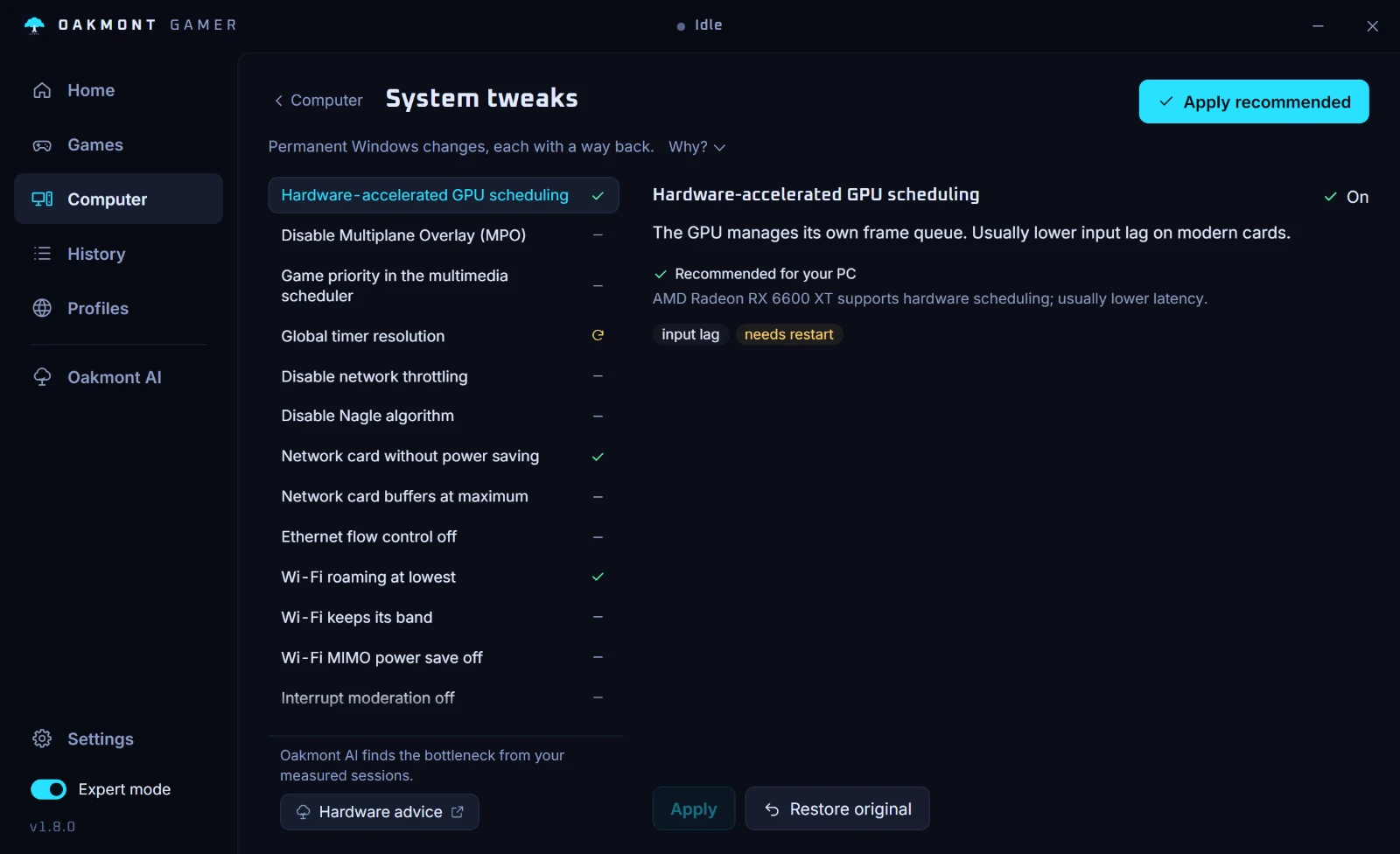
OakmontGamer starts from stock Windows with Game Mode on, and treats every change it makes on top as a candidate that has to win.
- If Game Mode is off, the app recommends turning it back on and has a switch for it.
- When a game starts it applies the session changes from that game's profile, and undoes every one when the game closes, after a crash too.
- Tuning plays each change against stock Windows on your PC and keeps it only when the 1% low wins by more than the noise between runs.
- Each session records FPS, 1% and 0.1% lows and every frame-time spike with the driver behind it, so you see what Game Mode alone leaves on the table.


Every feature works for 5 days, then a one-time licence keeps tuning on. Nothing is injected into a running game, and the app asks for administrator rights when it starts, because these are system settings.
What happens in one sessionQuestions people ask
- Does Windows Game Mode improve FPS?
- It can make frame rates steadier when other programs compete for the PC, which is what Microsoft describes. On a PC with little running in the background the difference is small. Test it on and off if you want to know.
- Should I turn Game Mode off?
- Usually not. If a game stutters only with it on, test both ways, three runs each, and keep whichever gives the better 1% lows.
- Do I need a game booster if Game Mode is on?
- Not always. If your PC is clean or the game is GPU-bound, Game Mode is enough. A booster helps when the game waits on the CPU or a lot runs in the background.
- Does a game booster conflict with Game Mode?
- Not usually. They work at different levels. Conflicts come from running two boosters, or a booster and priority rules in another tool.
- Where is Game Mode in Windows 11?
- Settings, Gaming, Game Mode. Windows 10 has the same switch in the same place.