
What variable refresh fixes
A normal monitor refreshes on a fixed clock. A frame that finishes between two refreshes either tears (VSync off) or waits for the next refresh (VSync on), which adds delay and turns a small drop into a visible hitch. G-SYNC and FreeSync flip that around: the monitor refreshes when the frame is ready.
That only works inside the monitor's range. Above its maximum refresh rate you are back to tearing or VSync, which is why the frame rate has to stay a little under the top. AMD lists the range under Display Specs in AMD Software; FreeSync Premium also has low framerate compensation for drops below the bottom of it.
Step 1: turn it on in the monitor and the driver
- Monitor menu: turn on FreeSync, Adaptive-Sync or VRR, whatever your model calls it. AMD warns that some picture presets switch it off; AMD's older guide also says to turn off Anti-Blur and use DisplayPort 1.2 or newer.
- NVIDIA: NVIDIA Control Panel, Display, Set up G-SYNC. Tick the enable box and pick full screen, or windowed and full screen. An unvalidated monitor needs the per-display setting ticked. Then in Manage 3D Settings set Monitor Technology to G-SYNC Compatible.
- AMD: AMD Software turns FreeSync on by itself on certified monitors. Check it under Display, and per game under Gaming, Games: AMD Optimized is the default.
- With two screens, NVIDIA says the G-SYNC one must be the primary display.
Check the monitor runs at its full refresh rate first. A 165 Hz screen left at 60 Hz wastes most of its range: Settings, System, Display, Advanced display shows the rate and lets you raise it.
Step 2: decide on VSync
NVIDIA's latency guide gives both answers, and they depend on what you can live with.
| Setup | Tearing | Latency |
|---|---|---|
| G-SYNC on, VSync off, Reflex on | Possible above the refresh rate | Lowest |
| G-SYNC on, VSync on in the driver, Reflex or Ultra Low Latency on | None | Slightly higher: the frame rate is capped below refresh automatically |
| G-SYNC on, VSync on, no cap, no Reflex | None | High at the top of the range |
VSync on in the NVIDIA Control Panel only works for fullscreen games; for a windowed game NVIDIA says to use the game's own VSync. VSync off means off in the game too: the driver only overrides the game when you force it there. Path of Exile 2 is one game whose maker warns about Adaptive VSync.
Step 3: cap the frame rate under the refresh rate
With Reflex or Ultra Low Latency and VSync on, NVIDIA's driver sets the cap for you, and its guide gives no number. Everywhere else, set one in the game or in the driver. OakmontGamer uses Hz x 3600 / (Hz + 3600), rounded down, which sits further under the top the faster the monitor is.
| Refresh rate | Cap |
|---|---|
| 60 Hz | 59 |
| 120 Hz | 116 |
| 144 Hz | 138 |
| 165 Hz | 157 |
| 240 Hz | 225 |
| 360 Hz | 327 |
Prefer the game's own limiter when it has one. Frame times that jump long-short-long usually mean a cap fighting VSync, and 1% lows show it better than average FPS.
Step 4: windowed and borderless games
Borderless games are drawn through the Windows desktop compositor unless Windows can hand them the screen directly. Microsoft's Optimizations for windowed games moves DirectX 10 and 11 games in windowed and borderless modes from the old blt model to the flip model, which lowers latency and lets them use variable refresh. Turn it on in Settings, System, Display, Graphics, then restart the game.
- NVIDIA: pick windowed and full screen mode in Set up G-SYNC, and use the game's VSync.
- NVIDIA still recommends exclusive fullscreen where a game offers it. Fullscreen optimizations explains the Windows side.
Reflex, Anti-Lag and frame generation
Variable refresh removes the VSync delay, not the render queue. For that, turn on Reflex or Anti-Lag 2 where the game has it: Reflex vs Anti-Lag compares them. Frame generation changes the picture again, because it doubles or multiplies what reaches the monitor: frame generation and input lag covers caps and VSync with it.
What OakmontGamer checks on your screens
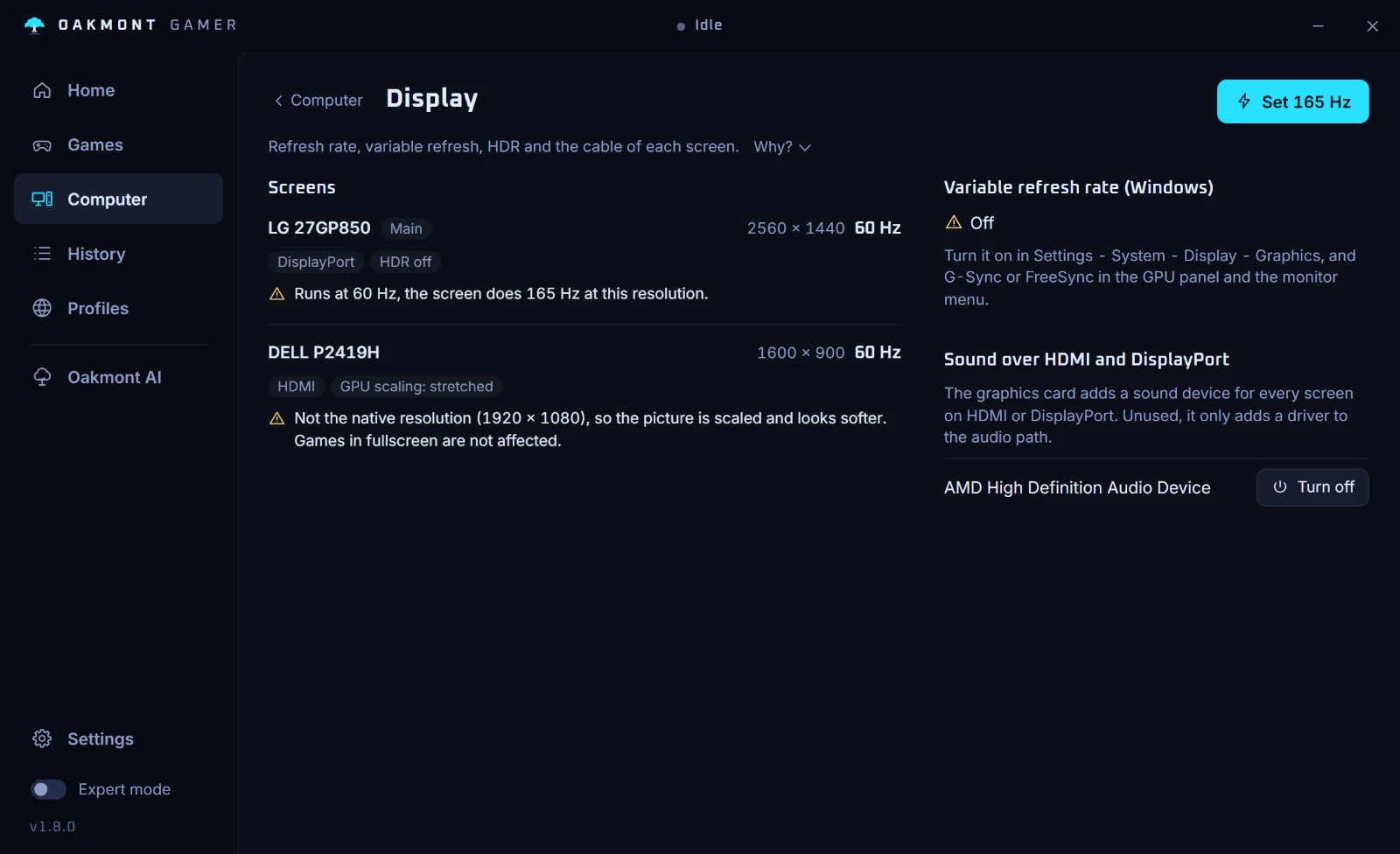
The Display page under Computer looks at every monitor. It changes only the refresh rate; for the rest it gives you the steps.
- A monitor running below what it can do at the current resolution, for example 60 Hz on a 165 Hz screen, gets a Set 165 Hz button. The new rate holds only if you press Keep within 15 seconds, so a blank screen goes back by itself.
- When fast modes show up only at lower resolutions over HDMI, DVI or VGA, it says the cable or port is the limit, and when a mode needs HDMI 2.1, it says so.
- It shows whether Windows' variable refresh rate switch is on, off or left at the Windows default, and where to turn on G-SYNC or FreeSync.
- The Computer page flags a second monitor slower than the main one, which can make borderless games stutter.
- The in-game presets that set a frame cap, among them Fortnite, Rust, Marvel Rivals, Overwatch 2 and Rainbow Six Siege, write it with the formula above: 225 at 240 Hz.
- Optimizations for windowed games is one switch in System tweaks, recommended on Windows 11, and the session's Diagnosis offers it when at least half the frames went through the compositor.


The driver frame cap option uses the same formula and is never applied to competitive games. More on the Computer page and its checks.
What the Computer page checksQuestions people ask
- Should VSync be on or off with G-SYNC?
- Either works. VSync off with Reflex has the lowest latency but can tear above the refresh rate; VSync on in the driver never tears, and with Reflex or Ultra Low Latency it caps the frame rate below the refresh rate for you at slightly higher latency.
- What FPS cap should I use with G-SYNC or FreeSync?
- A few frames under the refresh rate, more the faster the monitor. The formula Hz x 3600 / (Hz + 3600) gives 138 at 144 Hz and 225 at 240 Hz; with Reflex and VSync on, NVIDIA's driver caps for you.
- Does G-SYNC work in borderless windowed mode?
- Yes, if you pick windowed and full screen mode in Set up G-SYNC. On Windows 11, Optimizations for windowed games also moves DirectX 10 and 11 games to the flip model, which they need for variable refresh.
- Why is FreeSync not showing in AMD Software?
- Usually the monitor has it off, or a picture preset switched it off. Turn FreeSync or Adaptive-Sync on in the monitor menu and use the maker's recommended settings, then check AMD Software, Display again.
- Does FreeSync add input lag?
- No. Inside its range the monitor shows each frame when it is ready, which removes the wait VSync adds. Latency rises again only if the frame rate hits the top of the range with VSync on, which is what the cap prevents.
Sources
The technical claims on this page were checked against these official pages.