
Where the lag comes from
The CPU prepares each frame, the GPU draws it. When the GPU is the slower of the two, the CPU runs ahead and finished frames wait in a queue for the GPU. Your mouse movement was read when the CPU started the frame, so every frame in the queue adds its full frame time to the delay between click and screen.
Every tool on this page attacks that queue. They differ in where they sit: inside the game's engine, or in the driver, which only sees what the game hands it. Input lag on PC covers the rest of the chain, from the mouse to the monitor.
The four side by side
| Where it runs | Cards | Games | |
|---|---|---|---|
| NVIDIA Reflex | In the game (SDK) | GeForce GTX 900 series and newer | Games that ship it; NVIDIA keeps the list |
| NVIDIA Low Latency Mode | Driver | GeForce | DirectX 9 and 11; in DirectX 12 and Vulkan the game decides the queue |
| Radeon Anti-Lag | Driver | Radeon RX 400 series and newer, Ryzen 2000 APUs and newer | DirectX 9, 11 and 12 |
| AMD Anti-Lag 2 | In the game (SDK) | Radeon RX 5000 series (RDNA 1) and newer | Games that ship it, such as Counter-Strike 2 and Dota 2 |
The pattern is simple: the in-game ones are newer and know more, the driver ones work in more games.
NVIDIA Reflex and Reflex Boost
Reflex lives in the game engine. It times the CPU's work so it finishes just in time for the GPU, which removes the render queue instead of shortening it. NVIDIA says the driver's Ultra mode cannot remove the back-pressure on the game and CPU side, so Reflex usually does better, and recommends it over the driver setting wherever a game has it. With both on, Reflex takes over.
Reflex has two levels: On, and On + Boost. Boost overrides the GPU's power saving so its clocks stay high when the game is CPU-bound, at the cost of more power. On is the one to start with; try Boost in CPU-heavy shooters and measure.
Radeon Boost is something else entirely: it lowers the resolution while you move. Only the name is shared.
The driver switches
NVIDIA Low Latency Mode is in the NVIDIA Control Panel, Manage 3D Settings. Off lets the game queue 1 to 3 frames. On limits the queue to one frame, the old Max Pre-Rendered Frames = 1. Ultra submits each frame just in time for the GPU. NVIDIA says it matters most when the game is GPU-bound at 60 to 100 FPS, and that in DirectX 12 and Vulkan games the game decides the queue, so the switch does little there.
Radeon Anti-Lag is in AMD Software, Graphics, globally or per game, and Alt+L toggles it. AMD says it adjusts frame timing and works best when the GPU is the limit. On RDNA 3 cards the same switch enables Anti-Lag+ in supported games. Radeon Chill cannot run with it: turning Chill on disables Anti-Lag and Radeon Boost.
AMD Anti-Lag 2 is the AMD counterpart of Reflex. The game calls it at the point right before it reads your input, so it is switched on in the game's menu, not in AMD Software.
Step 1: turn on the in-game switch
Look in the game's video or graphics settings for NVIDIA Reflex Low Latency, or for AMD Anti-Lag 2. CS2, for one, uses a single setting for both and picks the right one for your card. Where it sits in a few games is in their guides: Valorant, Overwatch, Fortnite and Apex Legends.
- GeForce: set Reflex to On. Try On + Boost later if the game is CPU-bound.
- Radeon RX 5000 or newer: turn on Anti-Lag 2 where the game offers it.
- Leave the driver switch as it is. With Reflex on, the driver's mode is overridden anyway.
Step 2: the driver switch for games without one
- GeForce in a DirectX 11 game: Low Latency Mode On, or Ultra. Both shorten the queue from the driver side.
- Radeon: Radeon Anti-Lag on for that game, and Chill off, or Anti-Lag stays off.
- With G-SYNC and VSync, NVIDIA says Reflex and Ultra cap the frame rate below the refresh rate by themselves. The details are in G-SYNC and FreeSync settings.
- Frame generation adds latency, and Reflex or Anti-Lag 2 come with it to win some back. Frame generation and input lag explains the trade.
Step 3: check that it helped
None of these switches raises FPS, and a GPU-bound game gains the most. If the game is CPU-bound, the queue is already short and the difference is small. Play the same scene with the switch on and off, a few times each, and compare the 1% lows as well: how to measure 1% lows shows how to tell a real change from noise. A switch that makes frame pacing worse in a given game is not worth its latency gain.
What OakmontGamer does with these switches
The app works both layers: the game's own setting, and the driver's switch for the length of the session.
- For CS2, the game's In-game settings in the app tick Low latency mode, which writes
r_low_latencyinto the game's config: Reflex on a GeForce, Anti-Lag 2 on a Radeon RX 5000 or newer. A backup of the file is kept. - The presets for Marvel Rivals, The Finals, Squad, Deep Rock Galactic, Escape from Tarkov: Arena, Path of Exile 2 and Starfield turn on Reflex for GeForce cards.
- Anti-Lag / Low Latency Mode is on in the default profile. On a GeForce it sets Low Latency Mode to On (one queued frame) in the NVIDIA global profile; on a Radeon it turns on Radeon Anti-Lag through AMD's driver interface. The app does not set Ultra.
- When the game closes, every switch goes back to the exact value it had, Adaptive and "not set" included. A switch the driver accepts and then ignores is reported as an error, not as done.
- When frames come out uneven, the session's Diagnosis offers Anti-Lag as a toggle and tells you to turn on Reflex in the game if it has it.


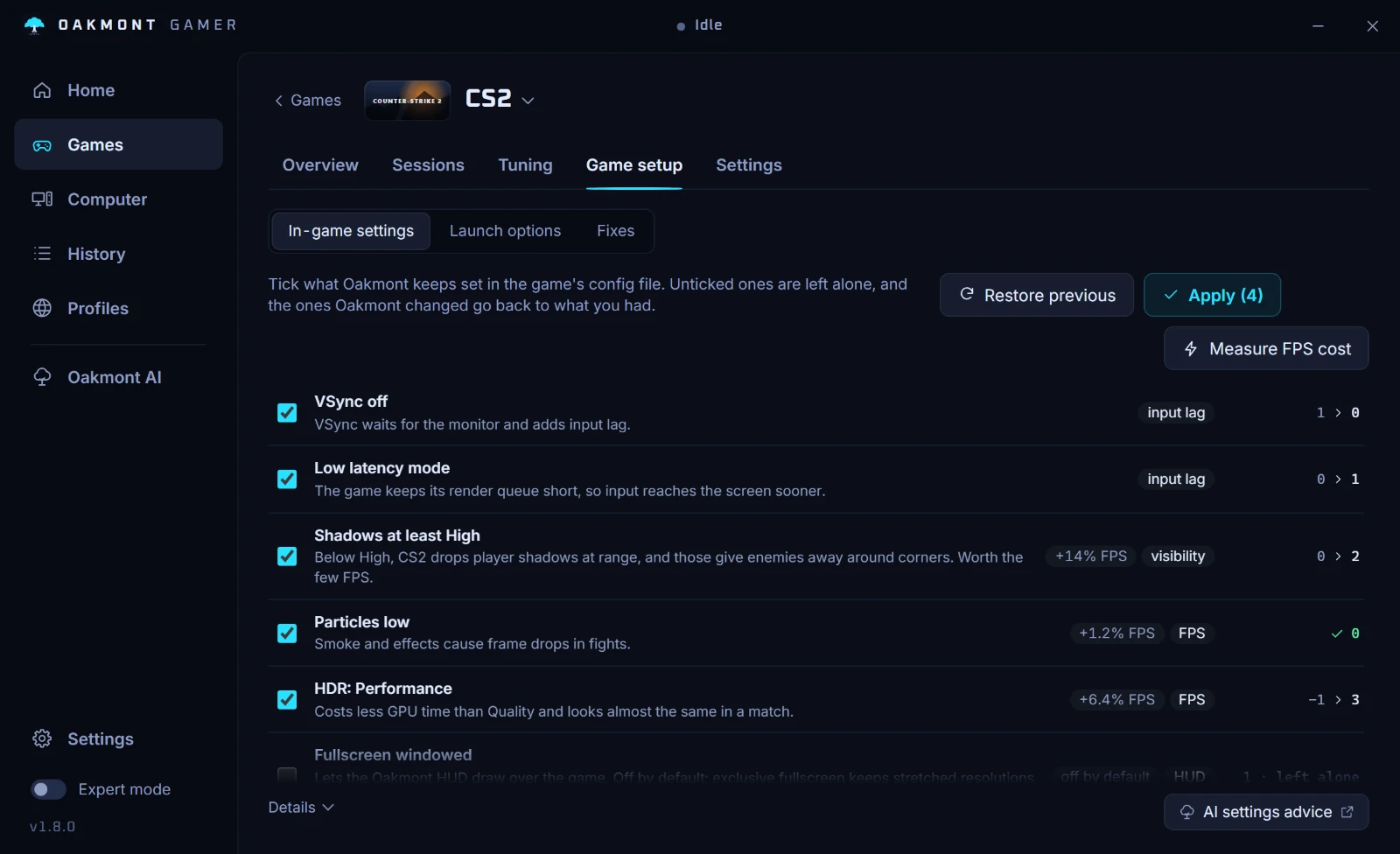
On Intel Arc the app reads the card's sensors but has no switches for it yet. Which games have a preset lists what each one sets.
What the app does per gameQuestions people ask
- Is NVIDIA Reflex better than Low Latency Mode?
- Yes, where a game has it. Reflex runs inside the game and removes the render queue, while the driver's Low Latency Mode can only shorten it from outside. NVIDIA recommends Reflex wherever it is available, and with both on, Reflex takes over.
- Should I use Reflex On or On + Boost?
- Start with On. Boost keeps the GPU clocks high when the game is CPU-bound and uses more power for it, so it is worth testing in CPU-heavy games and pointless when the GPU is already fully busy.
- What is the difference between Anti-Lag and Anti-Lag 2?
- Radeon Anti-Lag is a driver switch that works in most DirectX 9, 11 and 12 games on RX 400 cards and newer. Anti-Lag 2 is built into the game, works on RX 5000 cards and newer, and only exists in games that ship it, such as Counter-Strike 2.
- Does NVIDIA Low Latency Mode work in DirectX 12 games?
- Not much. NVIDIA says that in DirectX 12 and Vulkan games the game itself decides when frames are queued, so the driver switch has little to act on. Use Reflex if the game has it.
- Does Anti-Lag or Reflex increase FPS?
- No. Both cut the time between your input and the frame on screen, mostly when the GPU is the limit. The frame rate stays about the same.
- Can I use Radeon Chill with Anti-Lag?
- No. AMD says Chill does not work together with Anti-Lag or Radeon Boost, and turning Chill on disables them.
Sources
The technical claims on this page were checked against these official pages.